Product permissions and account management
Product Permission in the left navigation holds five entries: Studio, Data Insight, Agent Hub, Heimdall, and Billing Portal. All five manage accounts and roles, but the five pages are not built the same way, and applying one page's steps to another often means hunting for a button that isn't there, because the tab names, the columns and the available actions genuinely differ.
How the five products differ
| Product | Rail items | Tabs | First column | Primary action |
|---|---|---|---|---|
| Studio | Platform → Accounts; Project → Accounts, Roles | Collaborators / Invite | Name | Add Account |
| Data Insight | Accounts, Roles, Shares | Named User / Invite | Shared with | Purchase Named User |
| Agent Hub | Accounts | Named User / Invite | Shared with | Add Account |
| Heimdall | Accounts, Roles | Named User / Invite | Name | Add Account |
| Billing Portal | Accounts, Roles | Collaborators / Invite | Name | Add Account |
The differences that come up in practice:
- Not every product has Roles. Studio, Data Insight, Heimdall, and Billing Portal all do; Agent Hub does not. There is no entry point in the Console for adjusting Agent Hub's role definitions.
- Only Data Insight has Shares.
- Tab names come in two sets. Studio and Billing Portal use Collaborators; Data Insight, Agent Hub, and Heimdall use Named User.
- So does the first column. Data Insight and Agent Hub use Shared with, the rest use Name. That reflects what those two are granting: who this resource is shared with, rather than who belongs to this product.
- Only Data Insight's primary action is a purchase. The other four invite directly with Add Account; Data Insight uses Purchase Named User.
The URL segments do not match the navigation labels: Studio is platform and Agent Hub is sindri.
Studio: two levels, Platform and Project
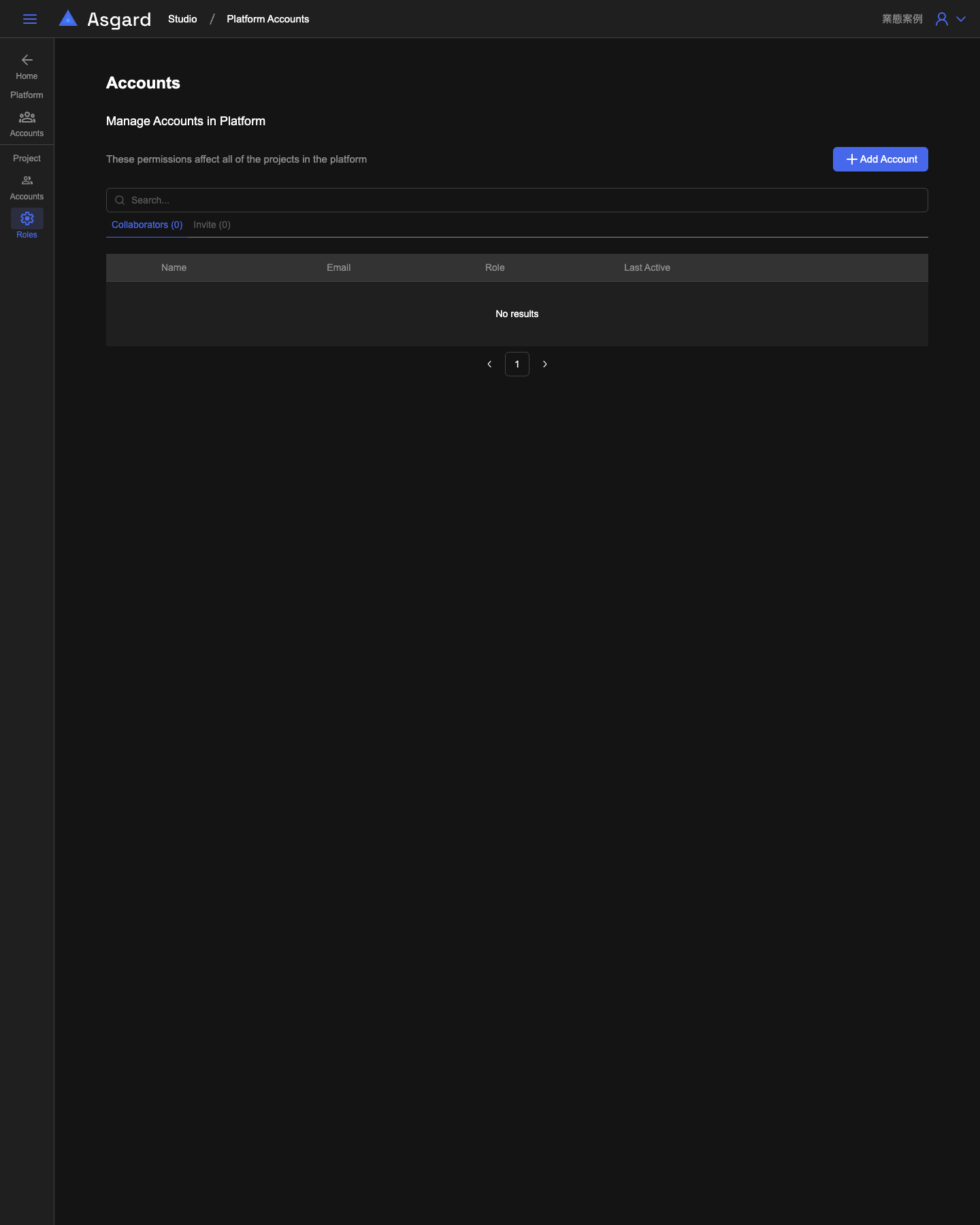
Studio is the only product split into two levels. The rail divides Platform from Project:
- Platform → Accounts states that these permissions affect all of the projects in the platform, and its heading reads Manage Accounts in Platform. Use it when a grant should cover every project at once.
- Project → Accounts and Roles applies to a single project, and Roles exists only at this level.
Data Insight and Agent Hub: scoped to a single resource
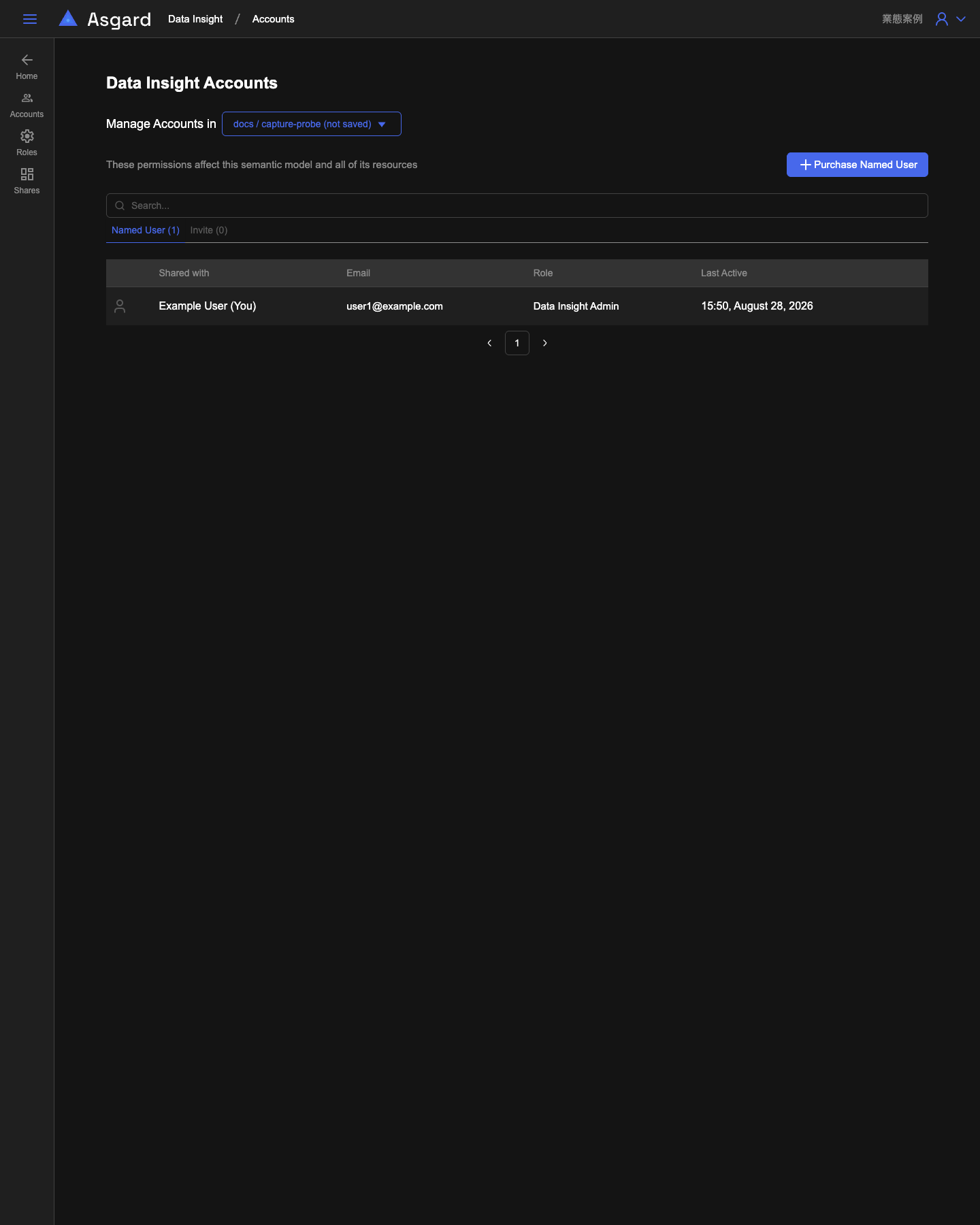
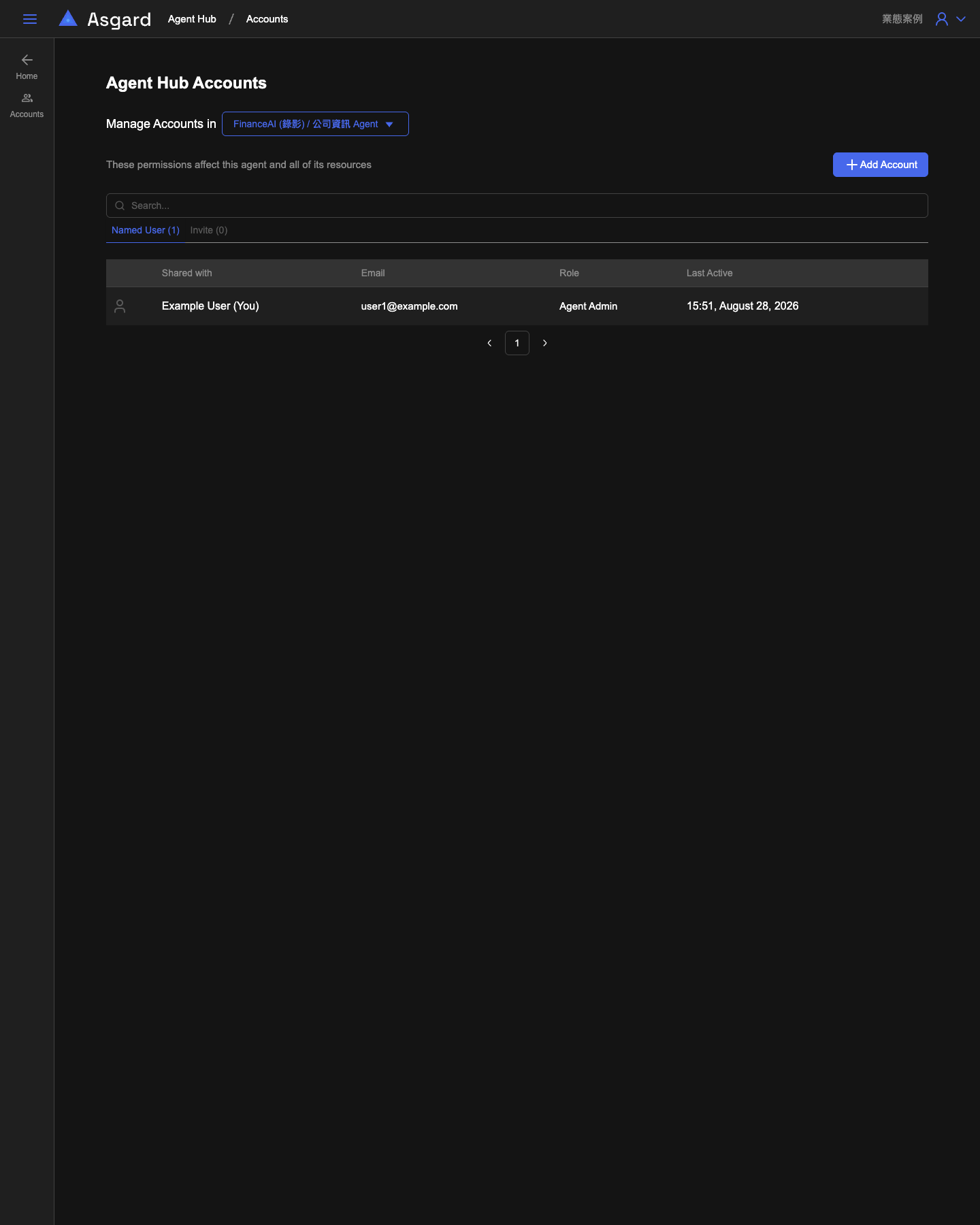
These two pages grant access to one specific resource inside a project rather than to the project itself. Manage Accounts in, at the top of the page, is a picker whose value combines the project name with the resource name; once you select one, the list and any invitations below apply only to that resource.
The picker lists resources from every project in the workspace, not just one. Data Insight lists each project's semantic models, such as 半導體 (IaC)'s MES 語意模型 or PCB 製造 (IaC)'s PLM 語意模型, and Agent Hub lists each project's Agents. There is no need to switch project first; find the target resource directly in the list.
Data Insight selects a semantic model, and the page states that these permissions affect this semantic model and all of its resources.
Agent Hub selects an Agent, and states that the permissions affect this agent and all of its resources.
This design has one consequence worth planning around: after you build a semantic model or an Agent in Odin, nobody else sees it automatically. To let them use that resource in Mimir or Sindri, return to the matching Console page, select the resource in Manage Accounts in, and add the people to the list. Doing it for another resource means repeating the process, because permissions are not inherited across resources.
The Role column shows the role that account holds on this resource, such as Data Insight Admin or Agent Admin.
Heimdall and Billing Portal
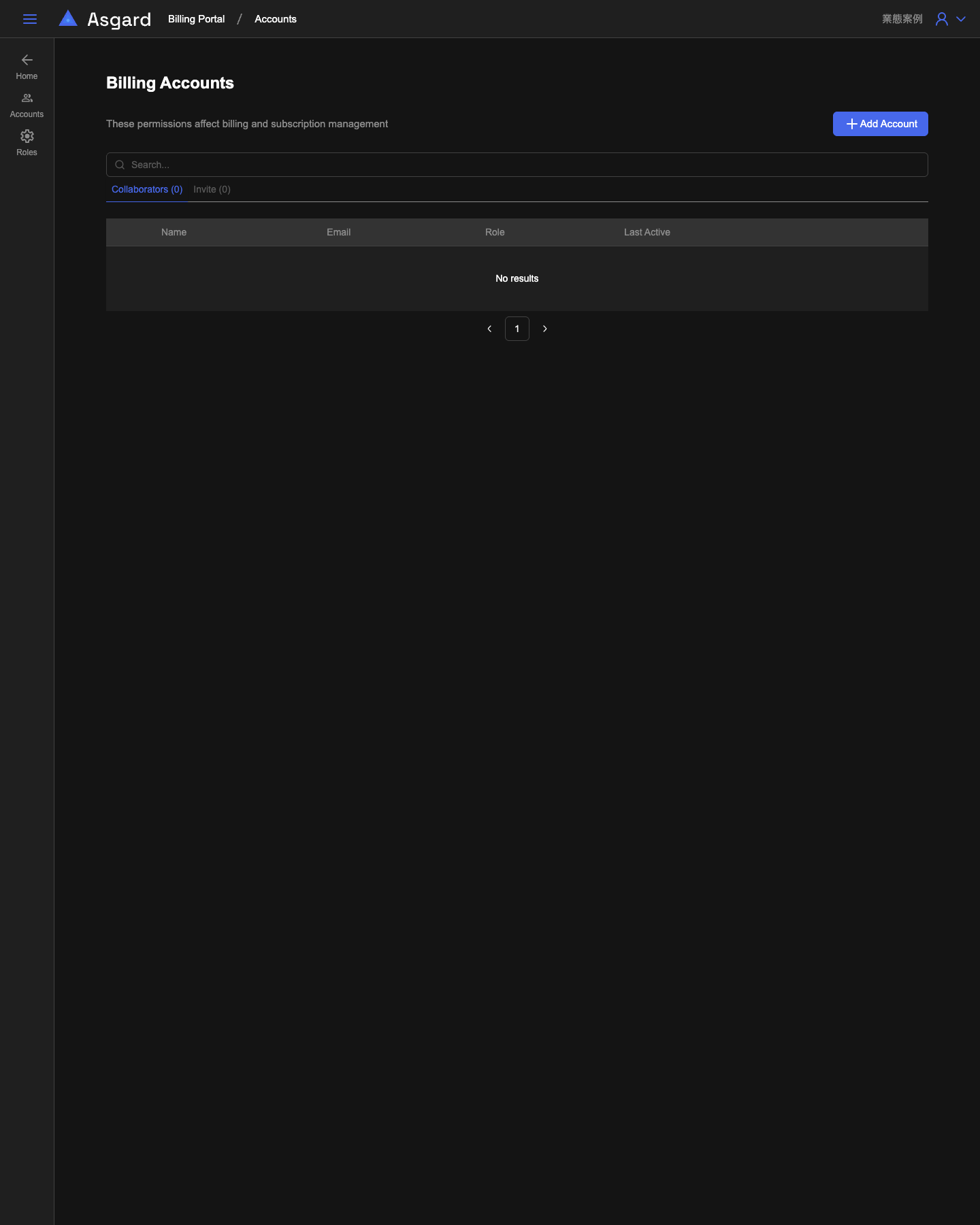
Neither page has a resource picker; their permissions apply to the whole product. Heimdall states that these permissions affect this product and all of its resources, and Billing Portal states that they affect billing and subscription management. Both offer Roles for inspecting role definitions.
Relationship to Workspace Accounts
Workspace Accounts manages the members and owners of a whole workspace; Product Permission manages a single product or a single resource. The two layers are independent: being a workspace collaborator does not mean seeing anything inside a product, while a workspace owner has full management rights over every product beneath it. To find out which permissions an account actually holds, the fastest route is the summary table behind View Permissions in Workspace Accounts.