Workspace settings and accounts
Workspace Settings in the left navigation holds two entries, both operating at the whole-workspace level: Workspace Accounts handles members, and Rename Workspace handles the name.
Workspace Accounts
The page is titled Workspace Accounts, with a line beneath it stating that these permissions affect this workspace and all of its projects. That sentence is the key to the page: permissions granted here are not limited to one product or one project, they apply to everything.
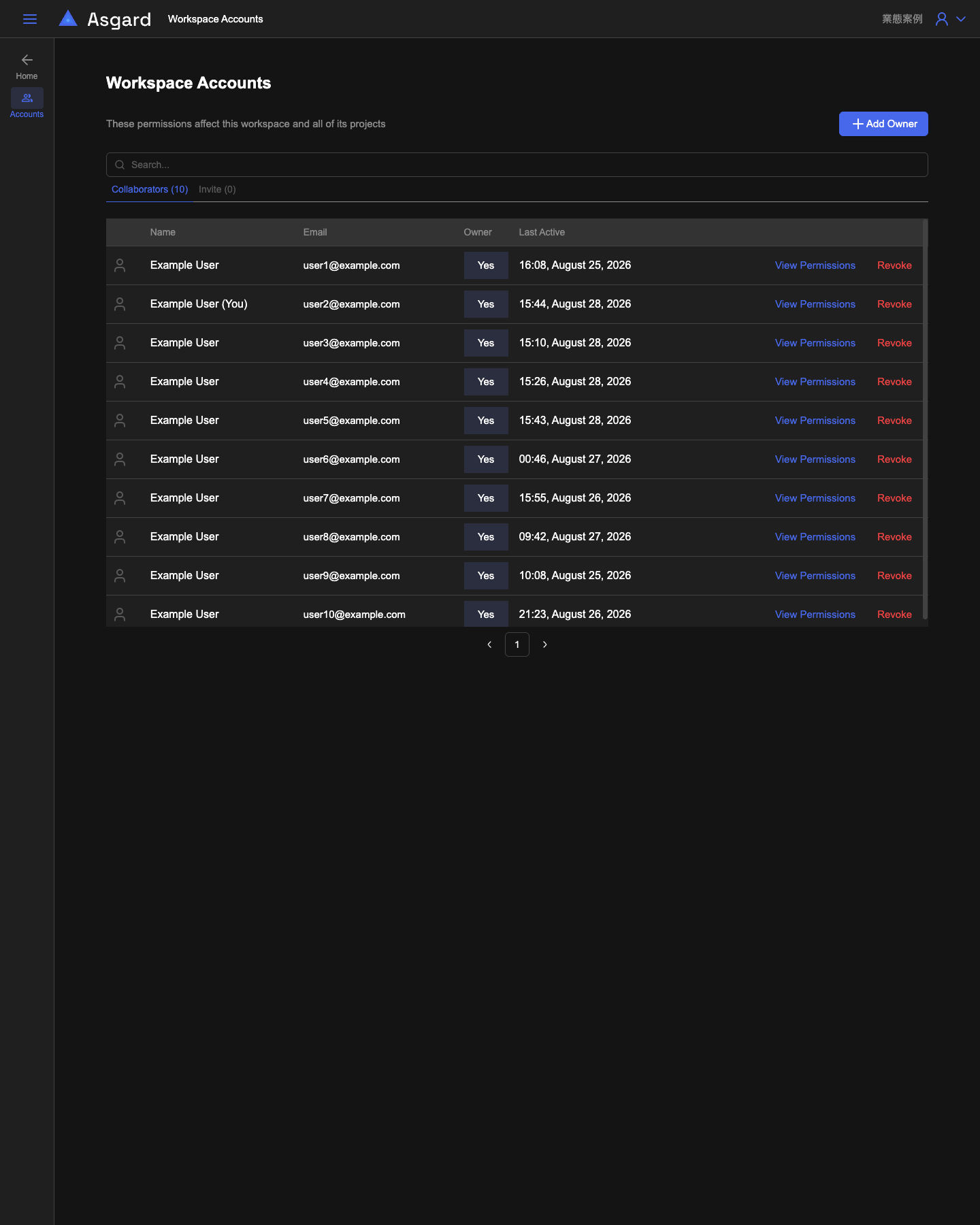
The list has two tabs. Collaborators holds members who have already joined, Invite holds pending invitations, and both show a count on the tab label. A search box above filters by name or email.
The table columns are Name, Email, Owner, and Last Active. The Owner column reads Yes or No for whether that member is a workspace owner; an owner has full management rights over every product under this workspace. Last Active is the time of their most recent activity.
Each row offers two actions:
- View Permissions opens that member's permission detail page (the URL is
accounts/{userId}), which shows the roles they actually hold across products and scopes. The page lists Domain, Role, and Product in a table, and each row expands into a Detail side panel holding the permission codes that role contains. This page also offers Set As Owner to promote the member to workspace owner, with a confirmation dialog explaining an owner's scope before it takes effect. - Revoke removes that account's access to this workspace.
Add Owner, at the top right, adds an owner directly rather than an ordinary member.
Rename Workspace
The Rename Workspace navigation entry does not change pages. The URL stays at /workspace/{workspaceId}, and a dialog titled Edit Workspace appears over the current page. The navigation entry and the dialog title are not the same wording.
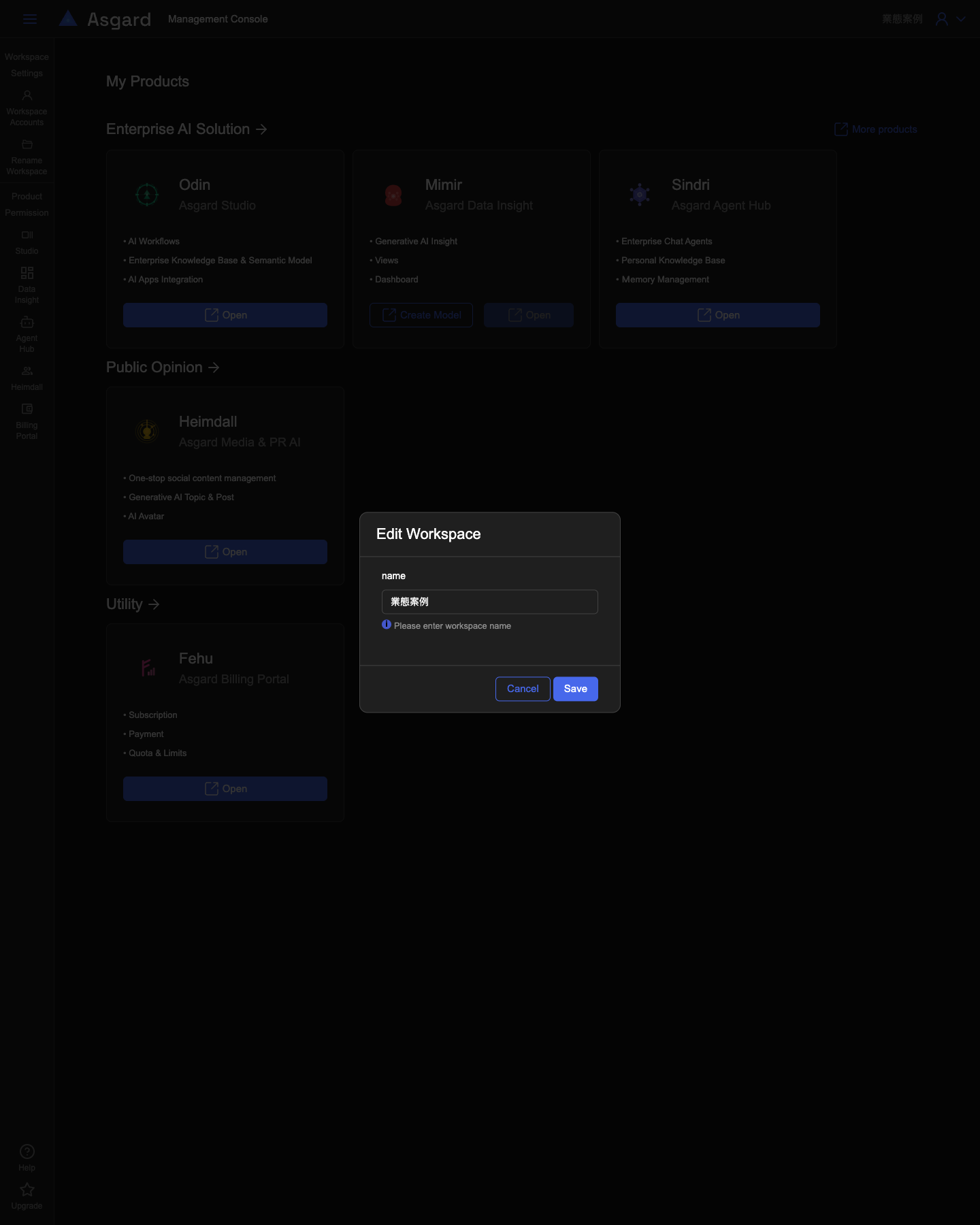
The dialog holds a single name field, pre-filled with the current name, and a line of helper text asking for a workspace name. Save commits the change and Cancel discards it. The new name appears in the workspace name shown at the top of the page.