How Workspaces and Projects relate
A Workspace is the top-level organizational unit under an account, and a Workspace can hold multiple Projects. Agent Hub, Context, Automation, File System, Knowledge Base, Applications and Settings, all of which appear in Features, are screens you work in under a specific Project rather than workspace-level features. The workspace level has only two pages, Overview (analytics) and Project (the project list), and its left navigation is completely different from what you see once inside a Project.
Project list
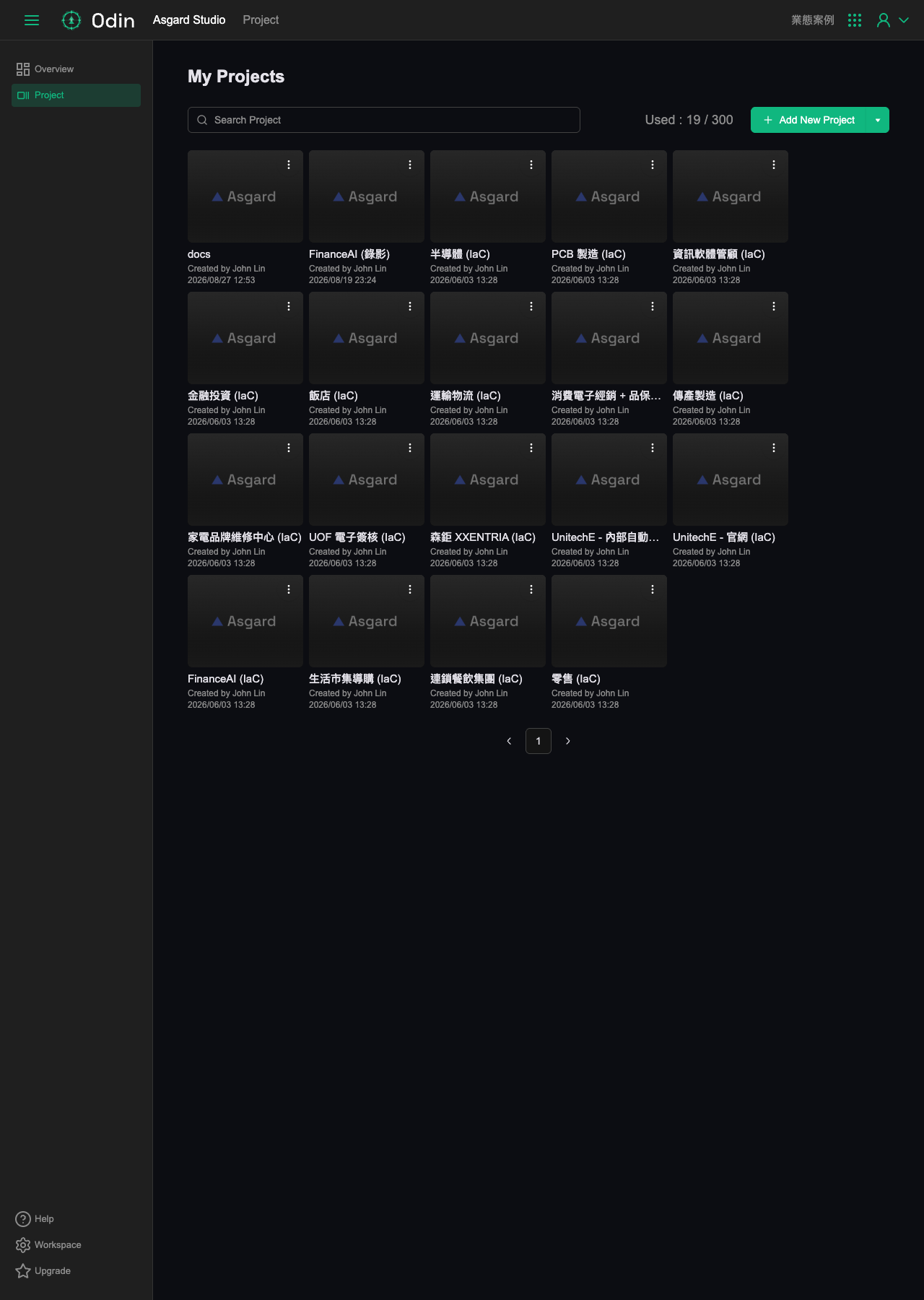
Clicking Project in the left navigation at the workspace level opens the My Projects page. A search box sits at the top, the top right shows current project usage (for example, Used : 19 / 300) and an Add New Project button, and below that each Project appears as a card with its name, creator and creation time. Clicking a card enters that Project's screens, which is where Home, Agent Hub, Context and the rest live.
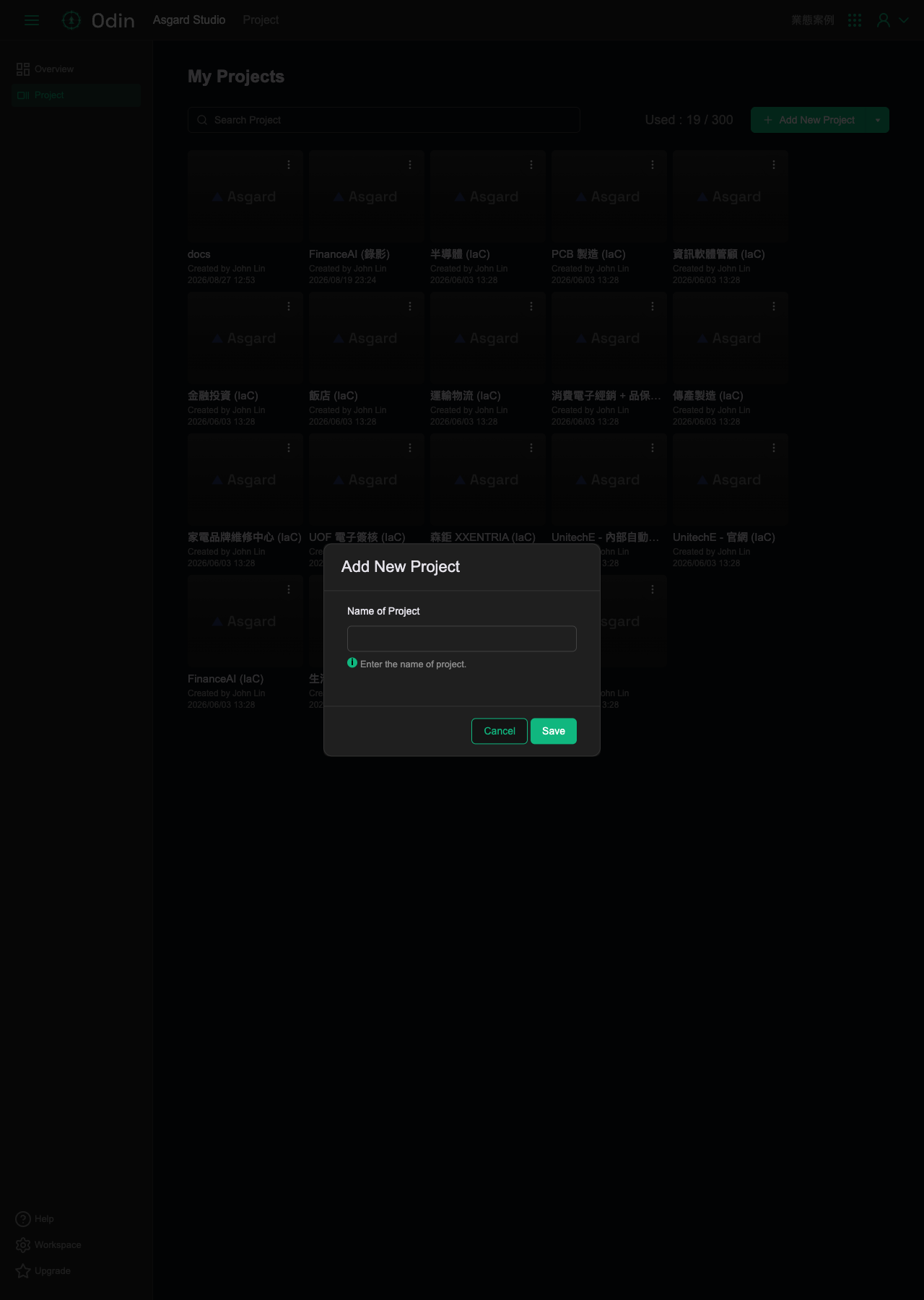
Clicking Add New Project opens a simple dialog with a single field, Name of Project. Click Save to create the new Project.
Workspace overview
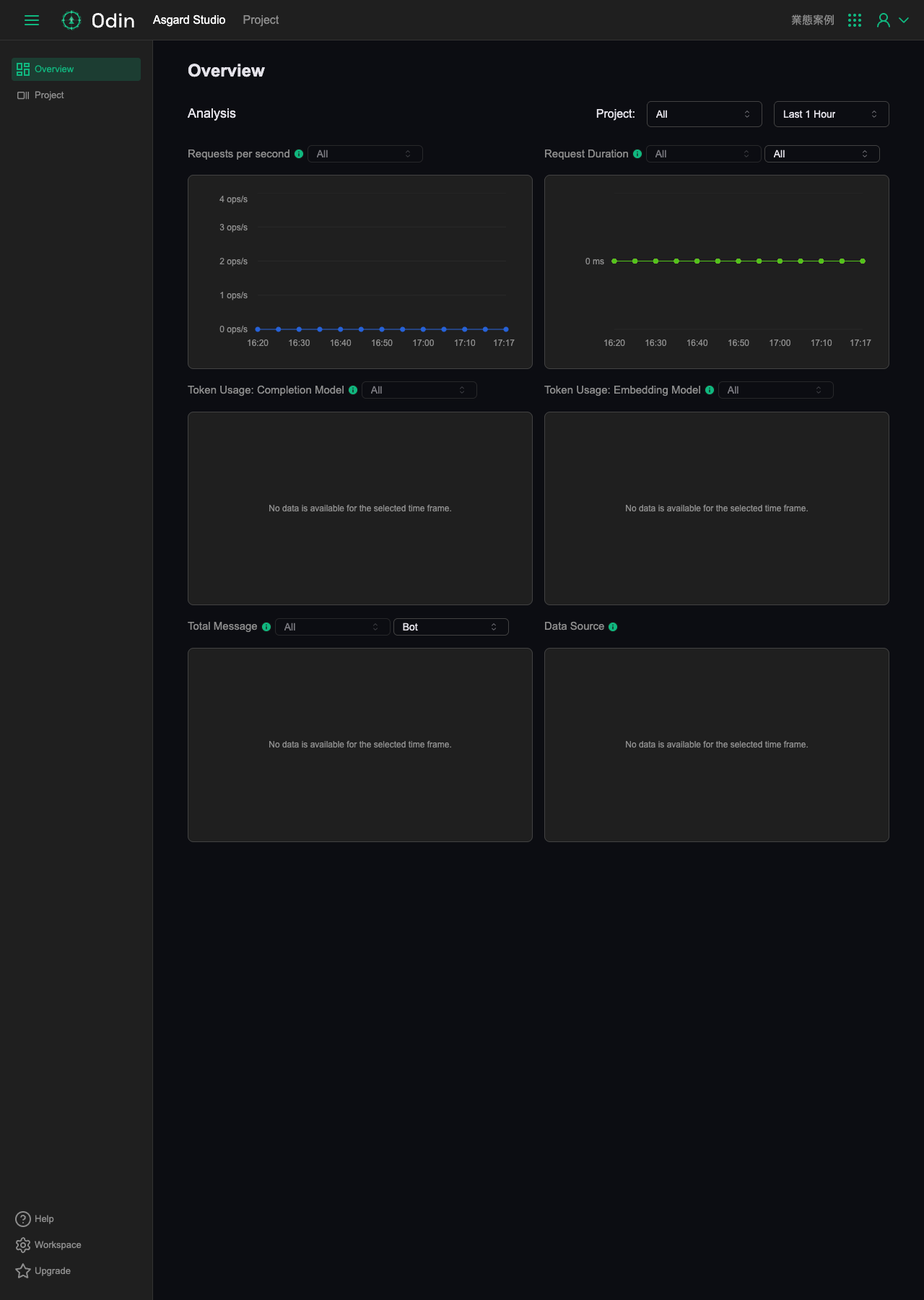
After signing in to Odin, the workspace level has an Overview page separate from any Project, and its left navigation holds only Overview and Project, a different interface from the screens inside a Project. Under Overview is the Analysis section, which you can filter by Project and time range (for example, Last 1 Hour), with these charts:
- Requests per second
- Request Duration
- Token Usage: Completion Model
- Token Usage: Embedding Model
- Total Message (can be filtered further by Bot)
- Data Source
Managing a workspace
Clicking Workspace in the bottom-left corner of any Project screen expands a small menu with two items, Workspace Member and Rename Workspace.
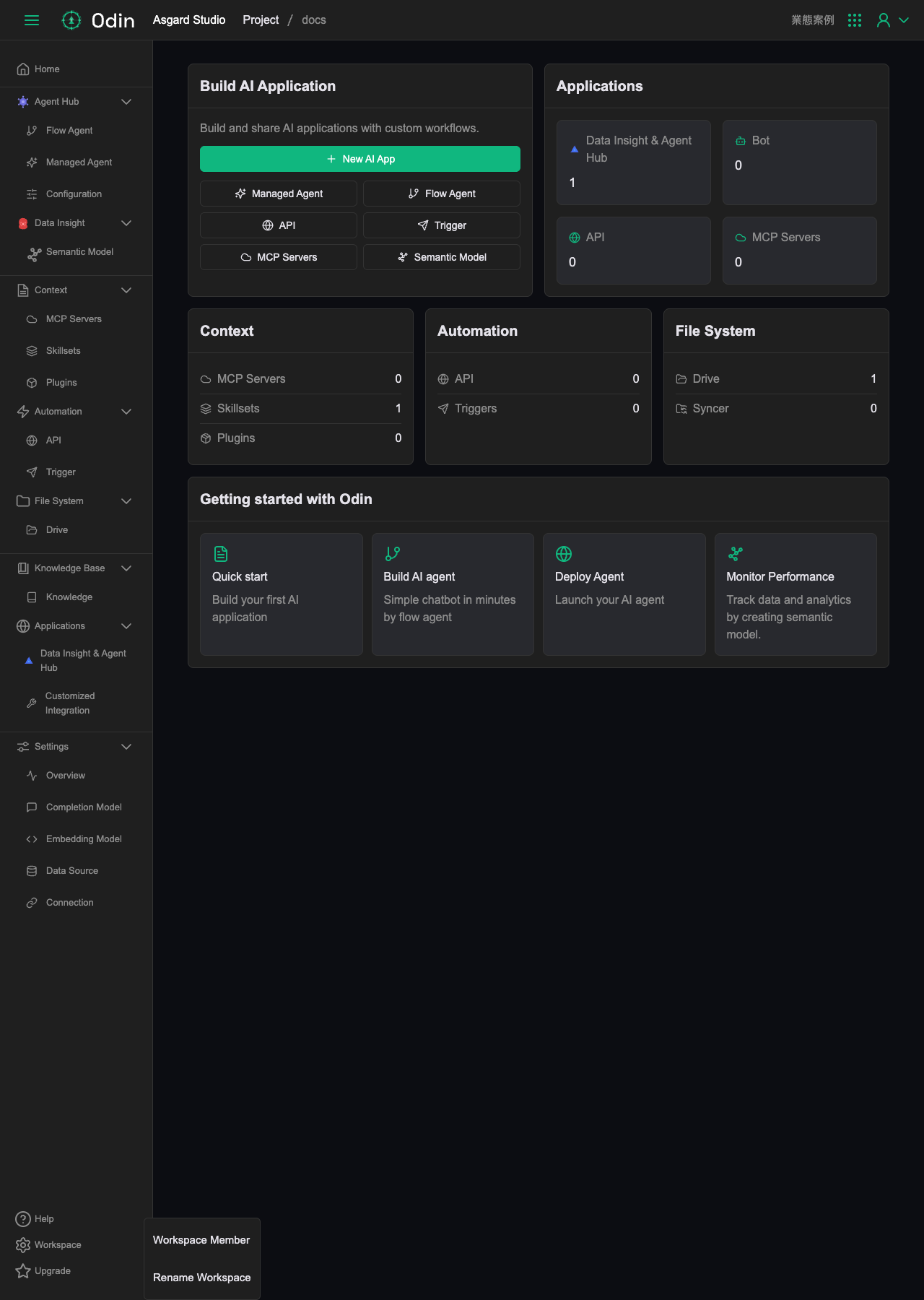
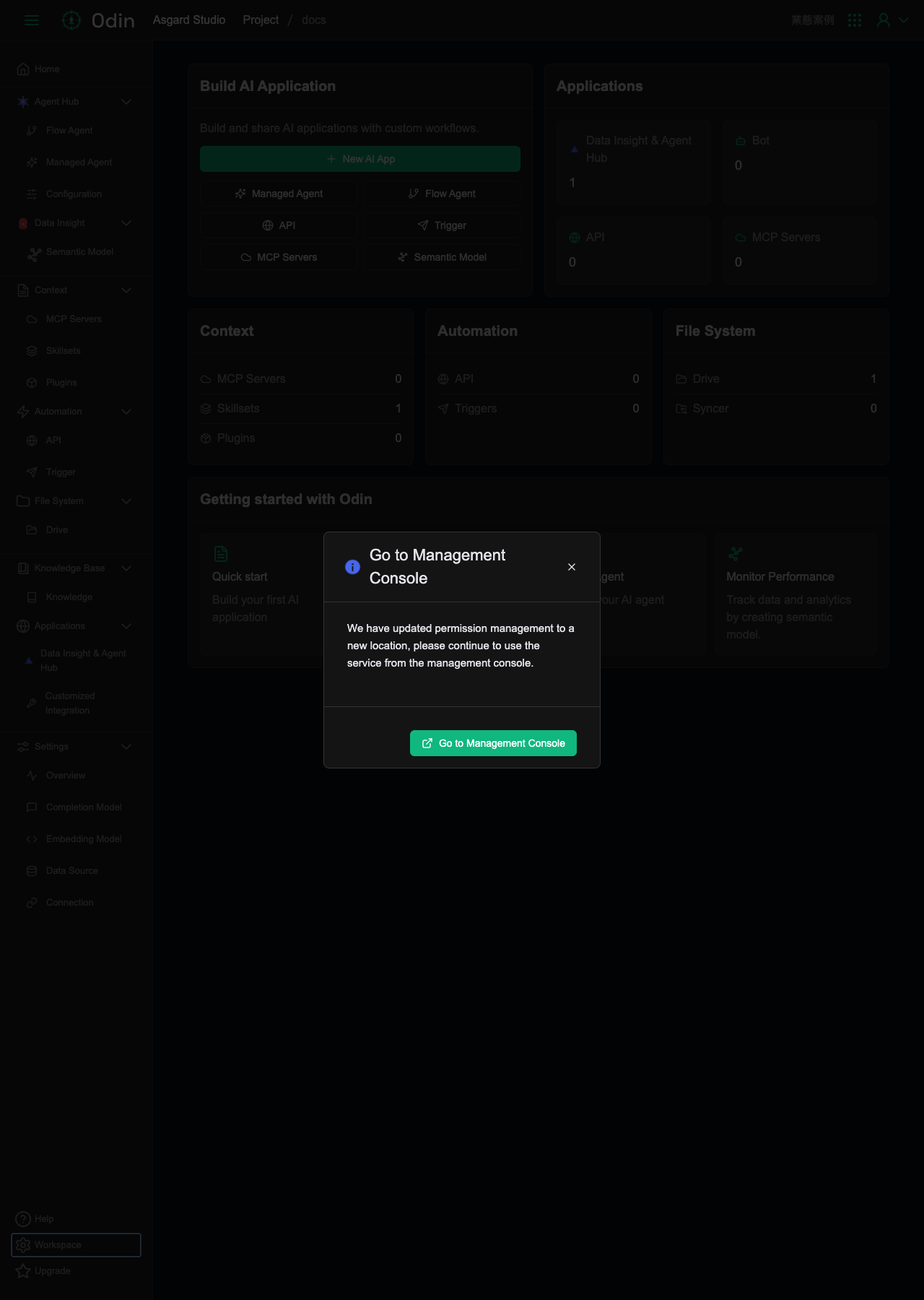
Clicking either item shows a Go to Management Console prompt, explaining that permission management has moved and directing you to the Management Console. The button opens a new tab to the Asgard Management Console. In other words, inviting and removing members and renaming a workspace have both moved out of Odin to the Management Console, and are no longer pages built into Odin.