Flow Agent
A Flow Agent is the entry-point agent that receives user requests and coordinates Managed Agents. The list page supports filtering by Group and searching, with columns for Name, Group, and Description.
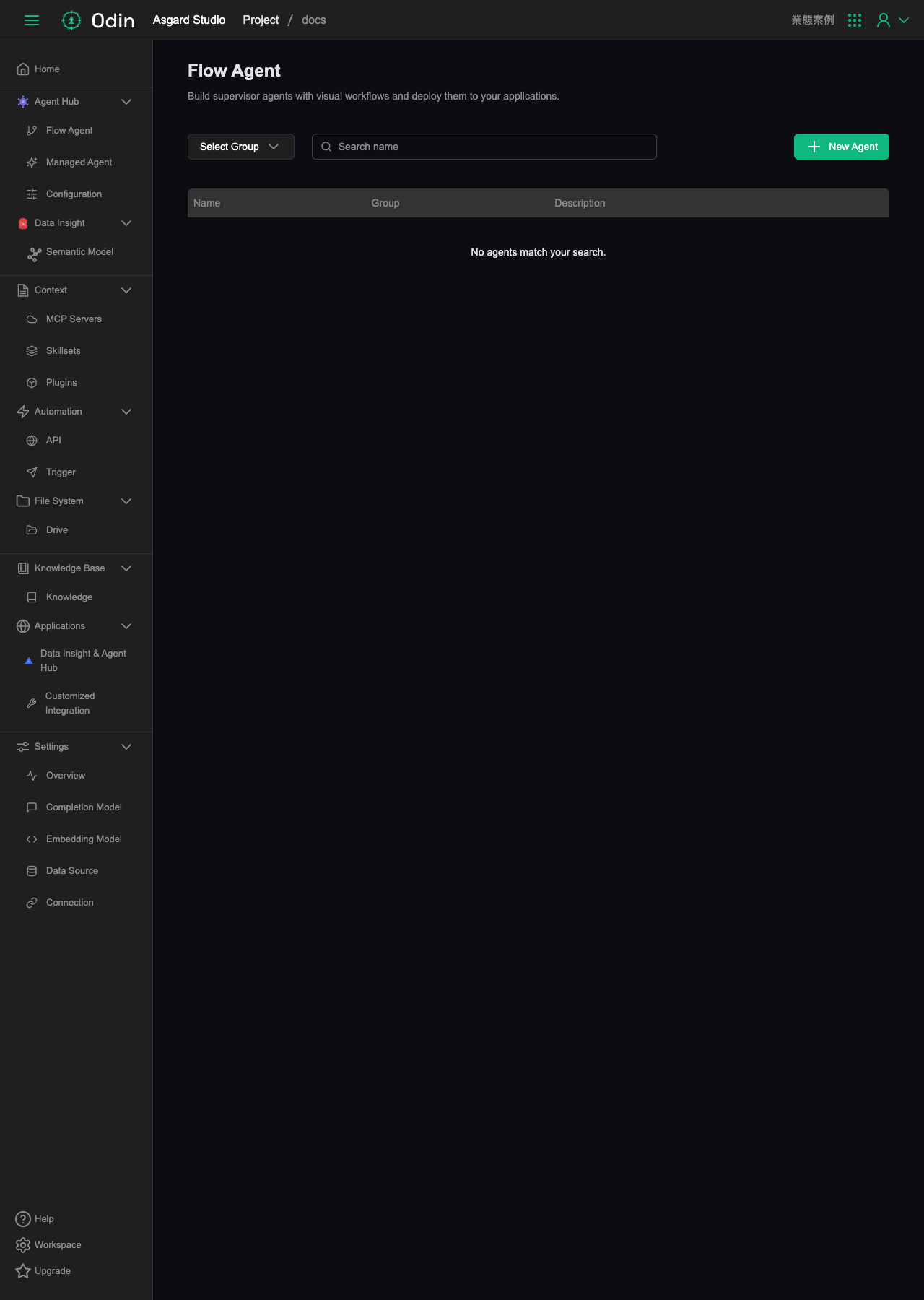
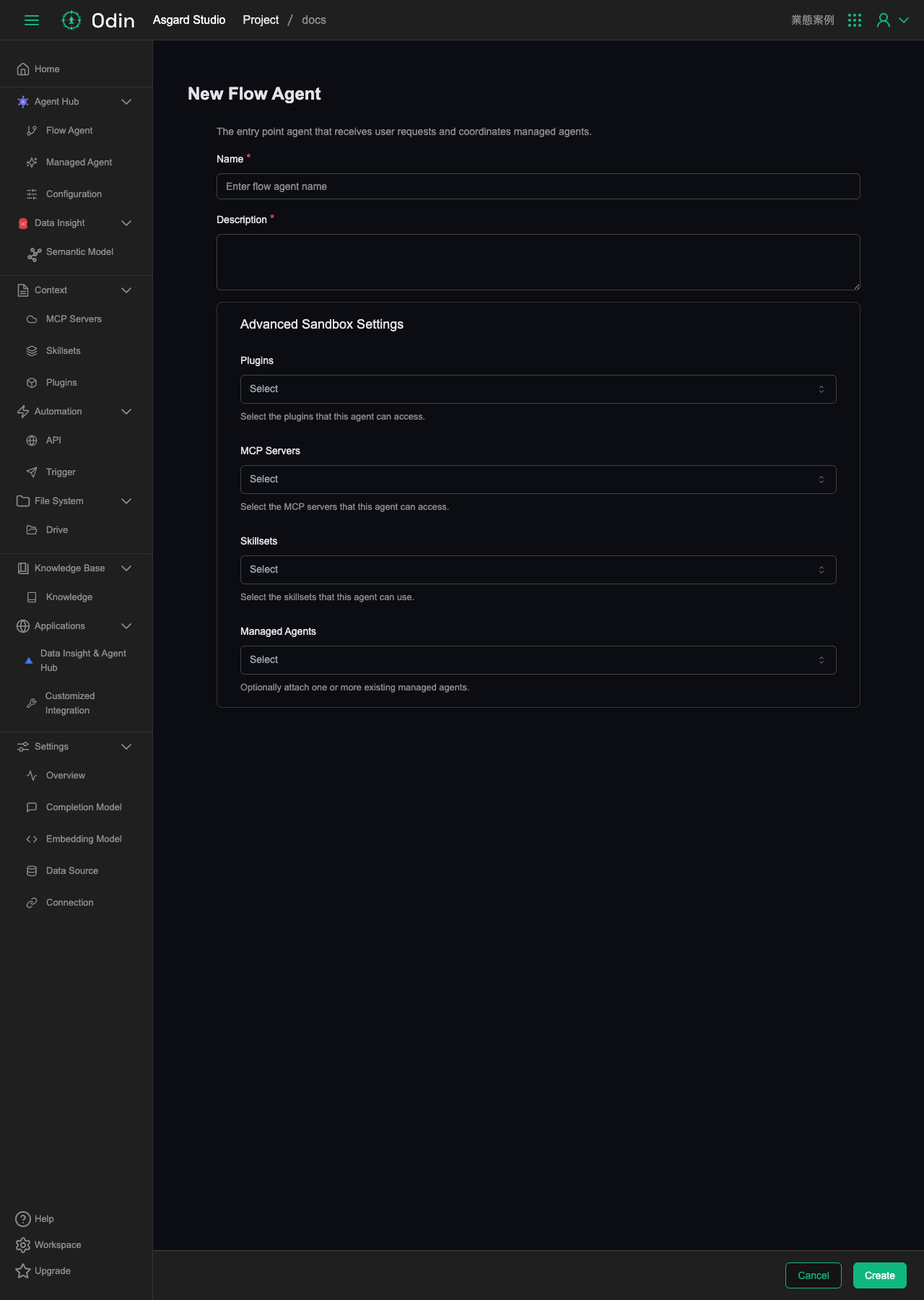
Clicking New Agent in the top right opens a full-page creation form:
- Name (required): the Flow Agent name.
- Description (required): what this agent is for.
Advanced Sandbox Settings below is optional:
- Plugins: the Plugins this agent can use.
- MCP Servers: the MCP Servers this agent can use.
- Skillsets: the Skillsets this agent can use.
- Managed Agents: optionally mount one or more existing Managed Agents.
Click Create to finish.
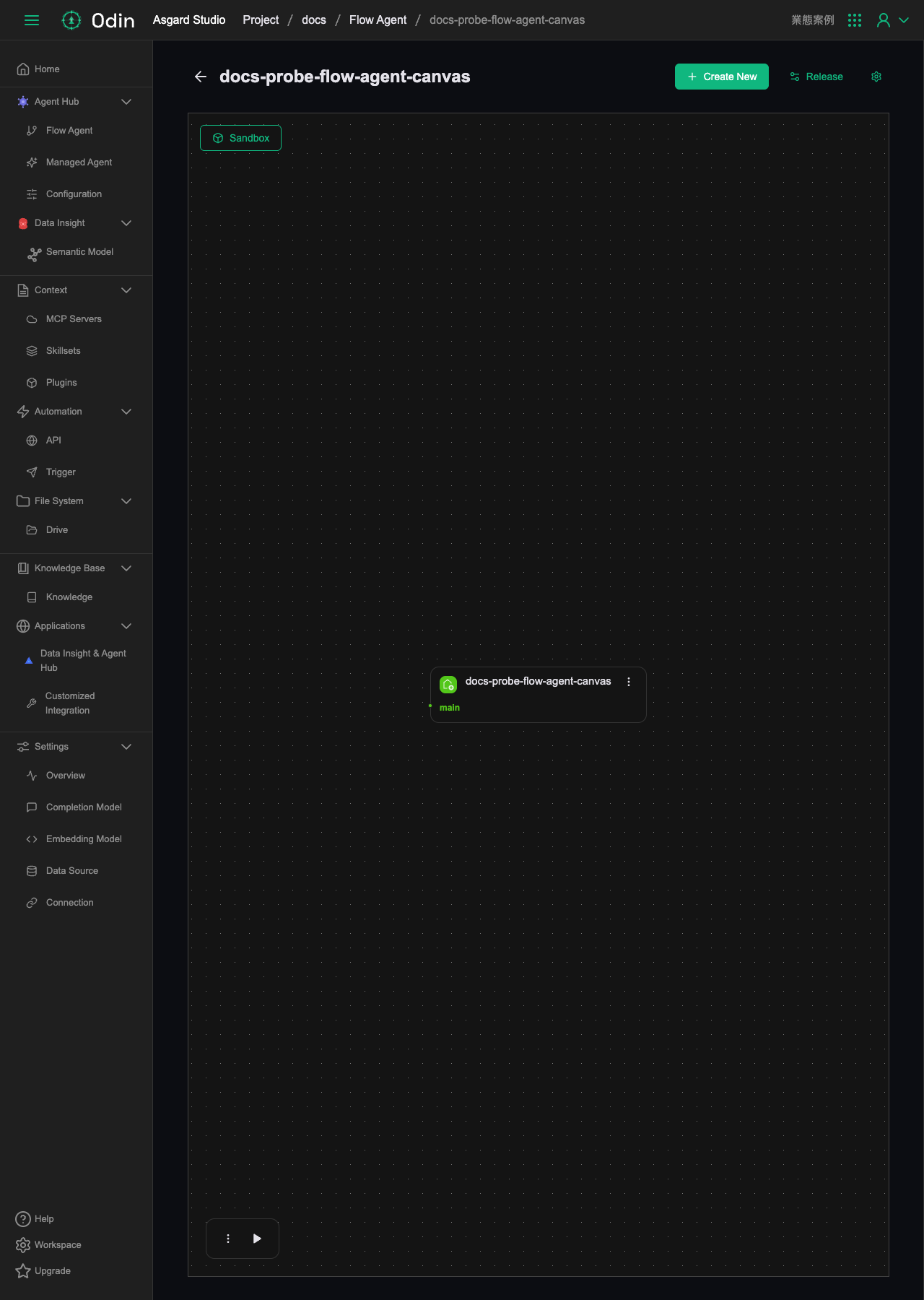
After creation: the workflow
Creating the agent opens its workflow set page. Every Flow Agent has at least one workflow named main, and the page carries two more areas: Sandbox for trying a workflow out, and Release for publishing a version. A published Flow Agent can be embedded in a website or application, and connected to Telegram, Slack, LINE, Discord and Sindri.
Pick View from the workflow's menu to open the canvas. A new Flow Agent is not blank: it arrives with a default flow that already runs.
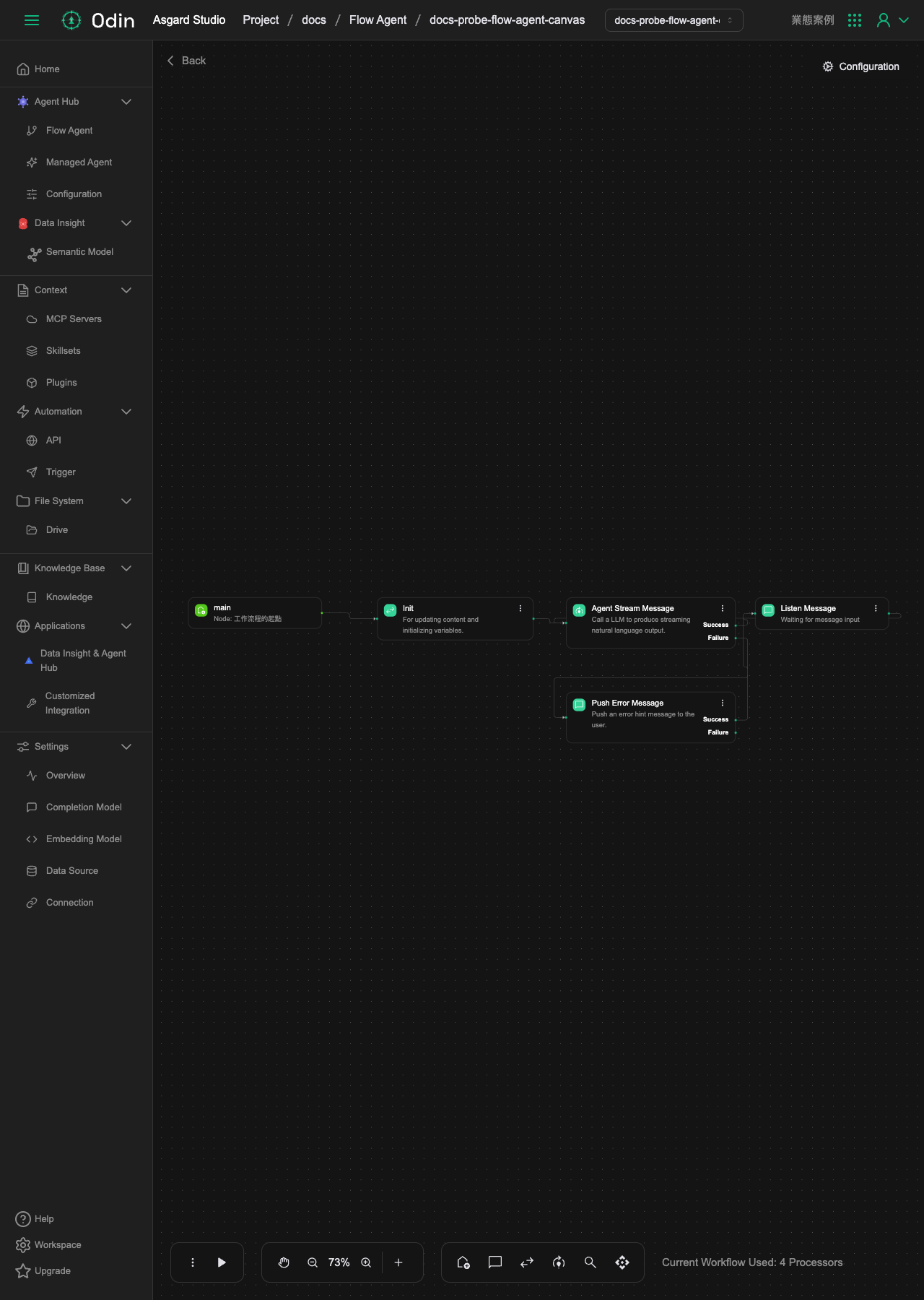
- main: the workflow's starting point.
- Init (Update Context): initializes variables. It sets none by default, and is the place to put fixed values.
- Agent Stream Message (Stream LLM Completion Message): calls the language model and streams the response. This is the body of the conversation.
- Listen Message (Listen Message): waits for the user's next message, closing the conversation loop.
- Push Error Message (Push Message): sits on Agent Stream Message's Failure branch and sends a hint when the model errors.
Adding nodes
In a node's property panel, Add Target Node under Next Step opens the node palette. Nodes are grouped by what they do: Flow, Message, Model, Action, Query and API.
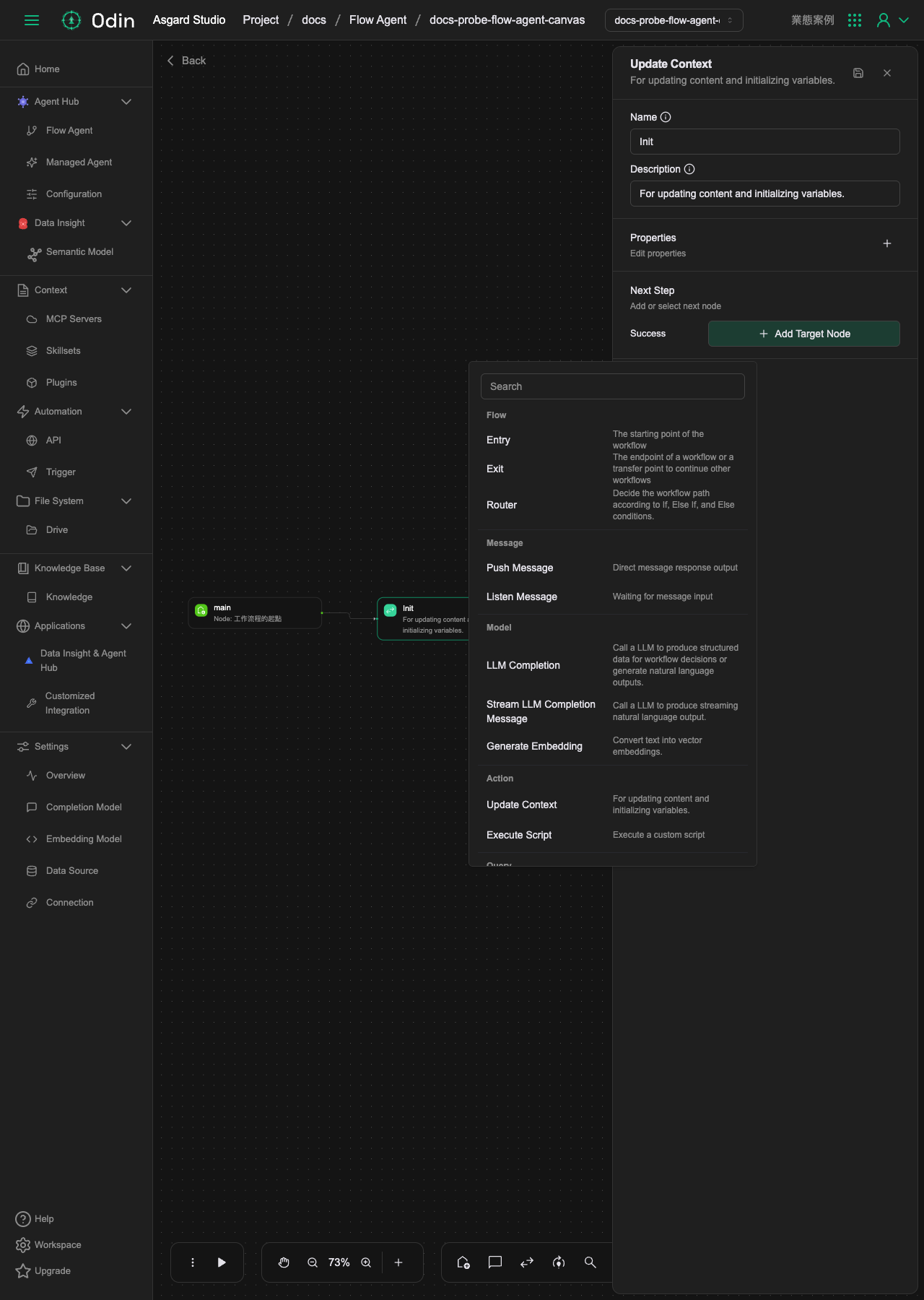
Each node's configuration, output variables and connection points are documented under Processors in the developer reference.
Almost every field in a workflow takes a literal value, an Expression or a Template. The expression syntax is covered in Parameter resolution. For formatted messages such as buttons and cards, the formats are defined in Message Template.