Semantic Model
A Semantic Model connects a database and has AI understand its structure, so you can query the data in natural language and produce visualizations and reports. Models created here also appear in Data Insight (Mimir). When the list is empty, the middle of the screen shows guidance inviting you to create your first semantic data model.
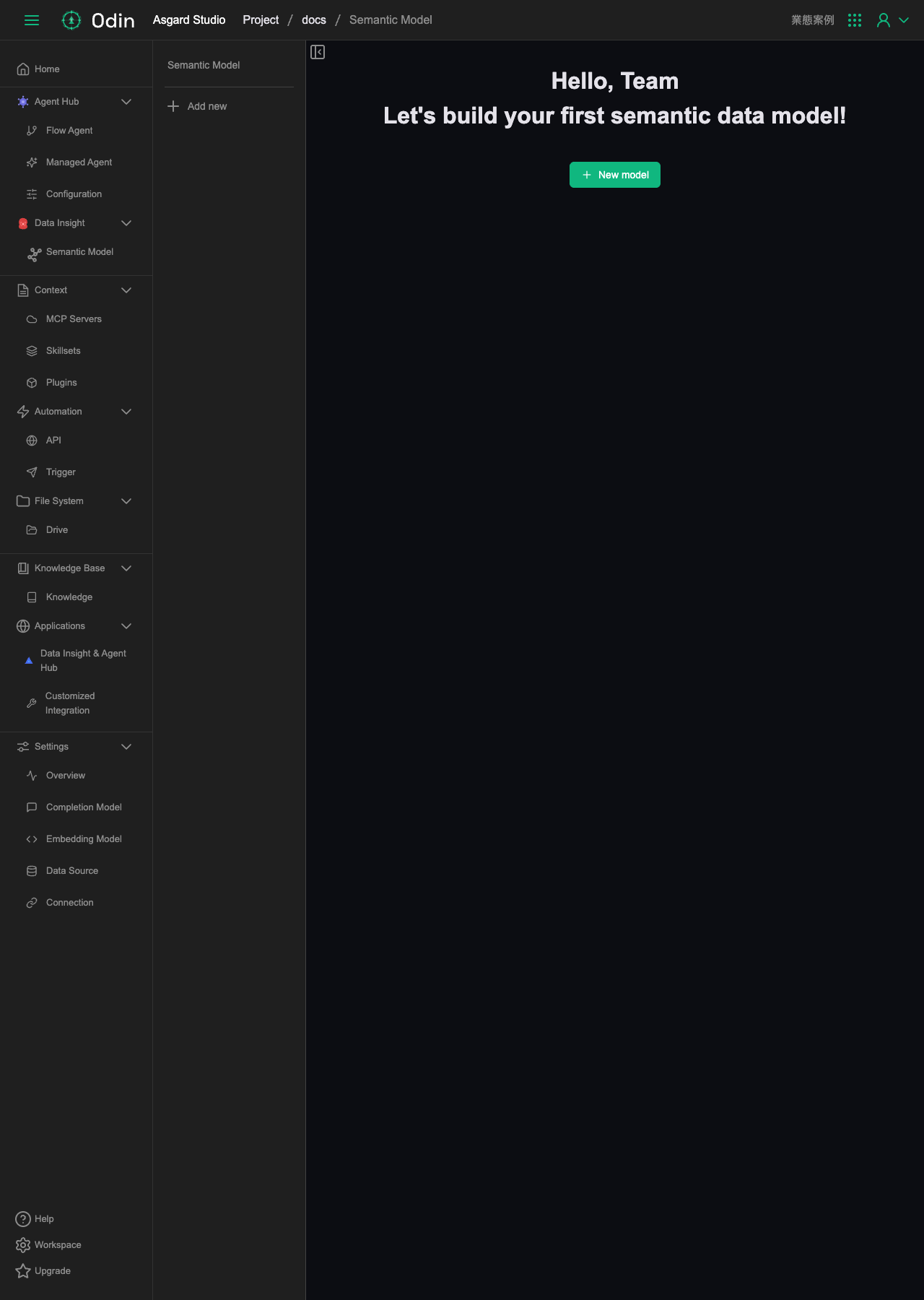
Clicking New model opens the New Semantic Model form. Basic Information asks for:
- Name (required): the model name.
- Completion Model (required): must be a Completion Model supporting at least 60,000 Max Output Tokens.
- Effort (optional): how deeply the model reasons when querying this Semantic Model. The setting applies to every query, and defaults to Default.
- Language (required): the language the AI replies in.
- Timezone (required): the timezone setting.
- Data Source (required): choose a saved data source. PostgreSQL, MySQL, MS SQL, Oracle, Trino and Athena are supported. You can also click Add New Data Source to add one.
- MCP Servers (optional): the MCP Servers this model can use.
- Plugins (optional): the Plugins this model can use.
Click Next once Basic Information is filled in.
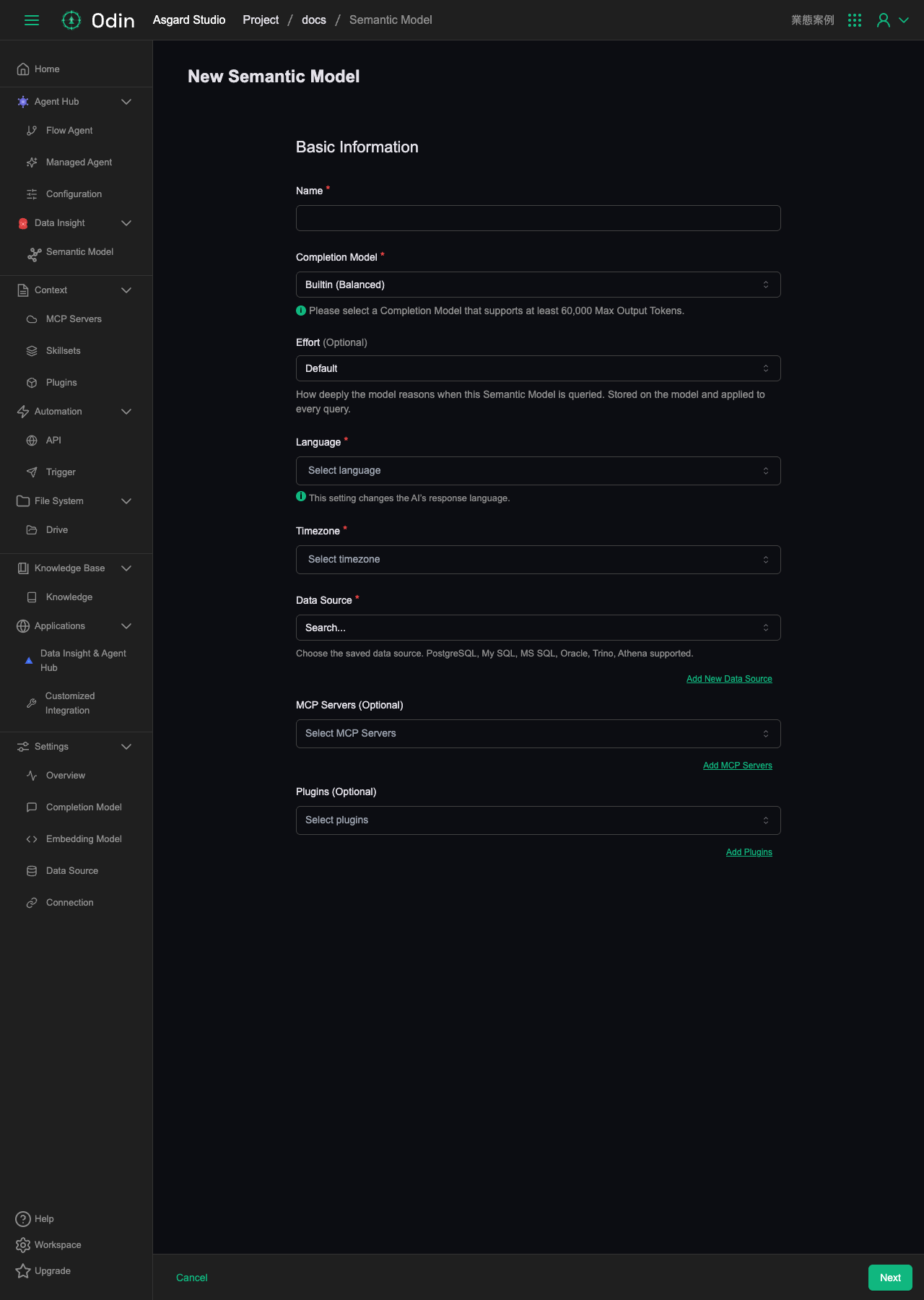
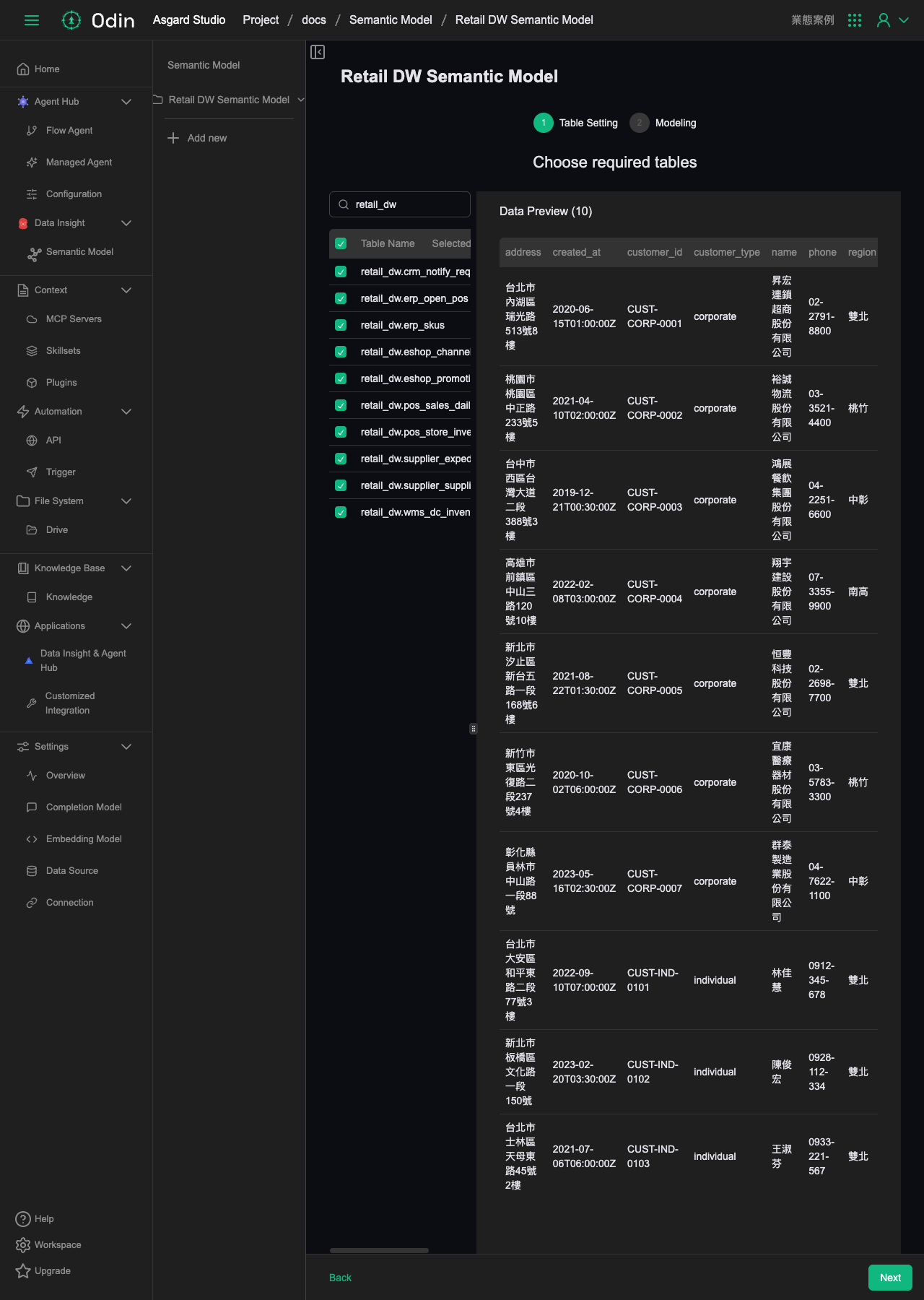
Table Setting: choosing the tables to model
Next takes you to Table Setting. The left side lists every table under this Data Source's database, across all schemas rather than just one, and you can filter with the search box and select the tables to include in this Semantic Model, up to 100. On the right, Data Preview shows the real columns and rows of whichever table you click, so you can check the contents before committing to a selection.
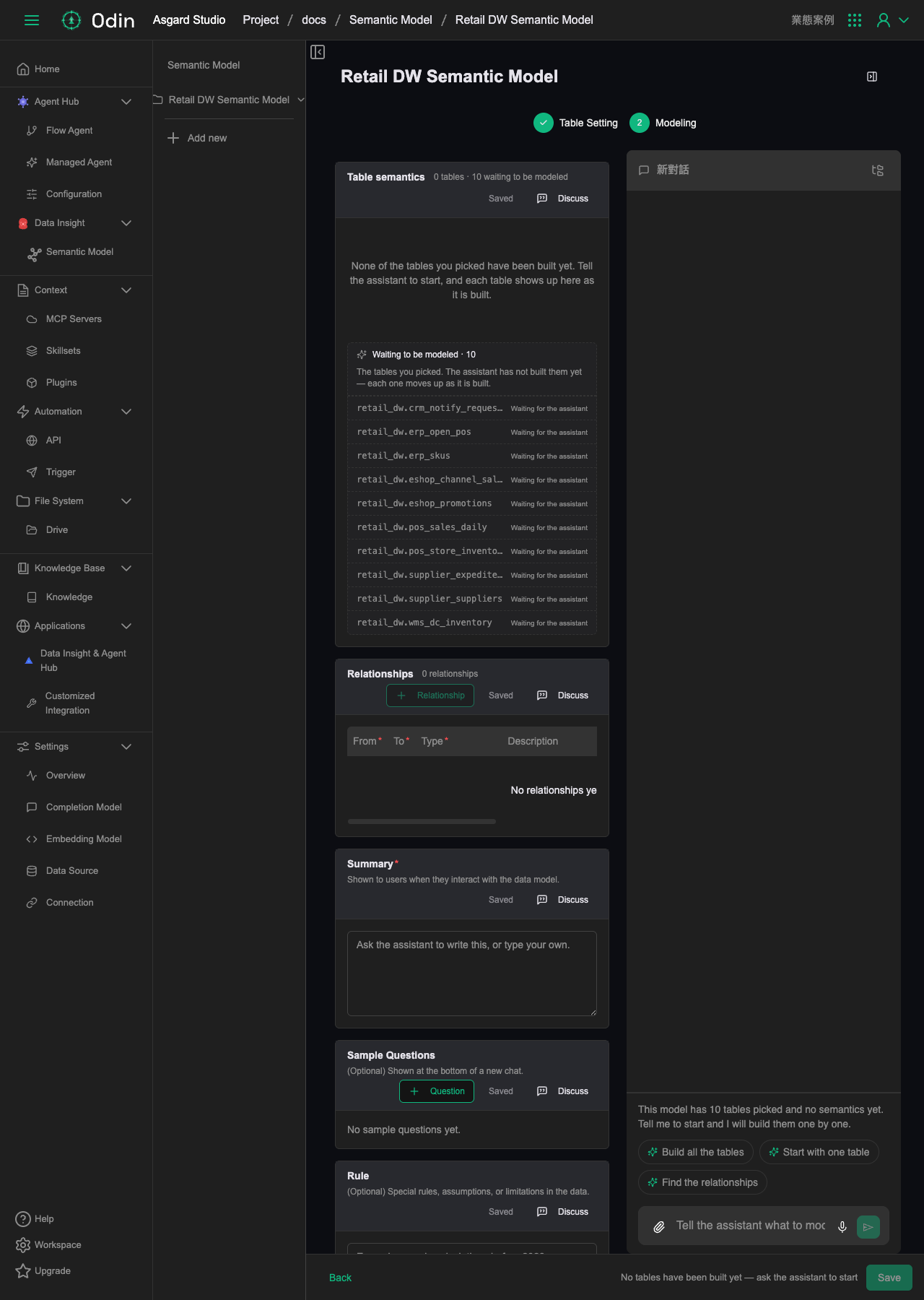
Modeling: AI builds the schema
After selecting tables, Next moves on to Modeling. At this point nothing is modeled yet. The right side is a chat panel where the AI assistant offers three quick actions: build every table at once (Build all the tables), model one as a demonstration first (Start with one table), or have the AI find the relationships between tables first (Find the relationships). The left side reserves sections for Table semantics, Relationships, Summary, Sample Questions, Rule and SQL Scripts, each with its own Discuss button for talking to the AI about that section alone.
Choosing Build all the tables has the AI assistant connect to the database and work through each table: reading columns and types, sampling data, verifying which column combinations work as a primary key without duplicates, then writing the Name, Description, Primary Key and Columns (with types) for each one. The Table semantics list on the left fills in as tables complete. In a real run across 10 tables this took about three minutes. The AI also writes the Summary for the whole Semantic Model, and before adding relationships it raises the questions it cannot answer from the data alone and needs a human to decide (for example, whether a column that currently holds only one value will hold others later, or what two similar columns each represent). It continues with the relationships between tables and the sample queries once you answer.
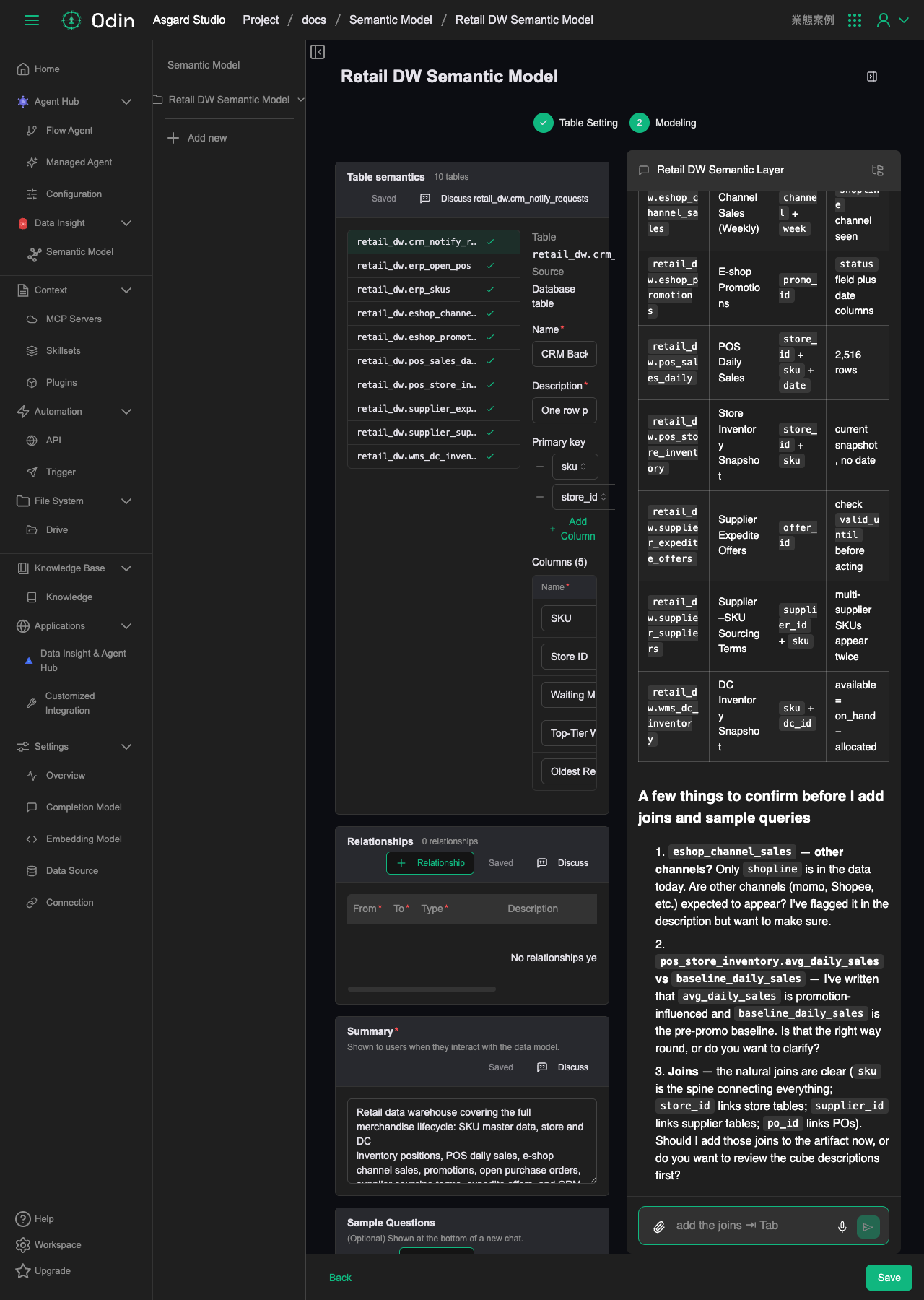
There's a Save button in the bottom right, and saving is manual. If you switch tabs or close the tab without clicking Save, the Table Setting and Modeling choices along with the schemas already built are not kept, and returning lands you back at an empty Table Setting.