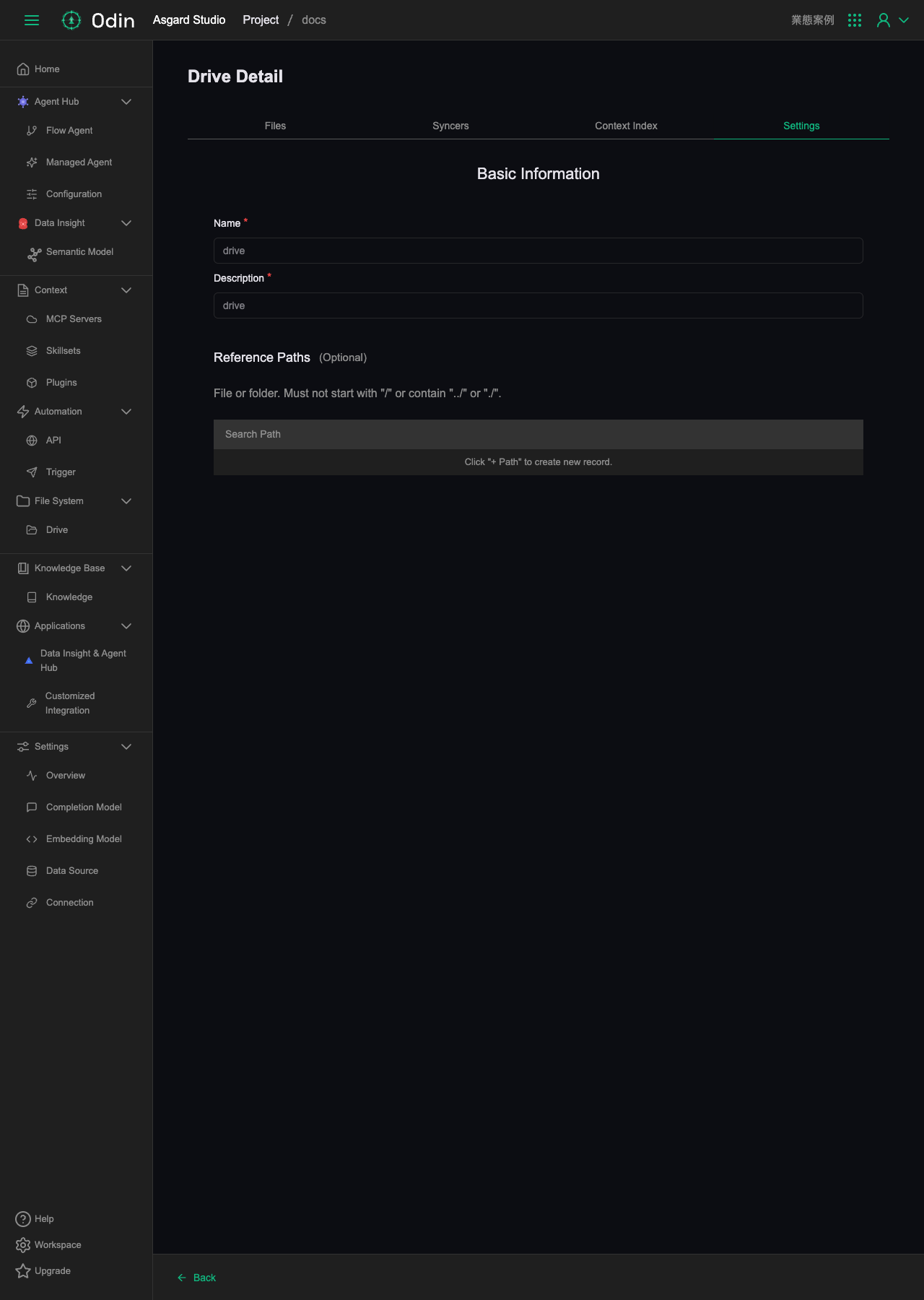
Drive
Mountable file storage that agents can read and write. There's a search box at the top of the page and a button to add a Drive in the top right (when the list is empty, that button appears in the empty state in the middle of the screen instead).
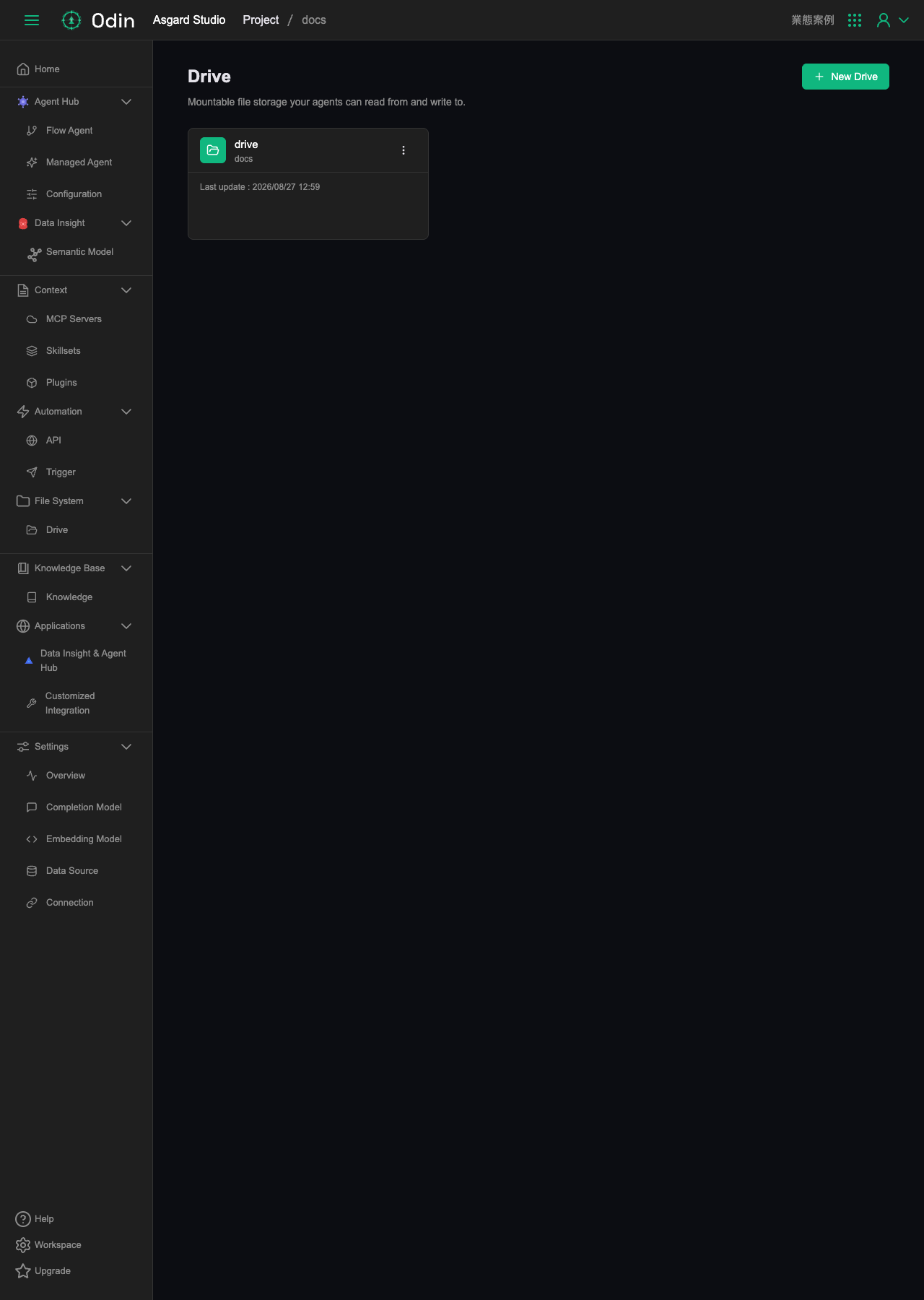
Adding a Drive
The add button opens a full-page form. Basic Information has just two required fields, Name and Description. Below that is an optional Reference Paths section where the + Path button adds more entries. The screen states explicitly that a path must not start with / and must not contain ../ or ./.
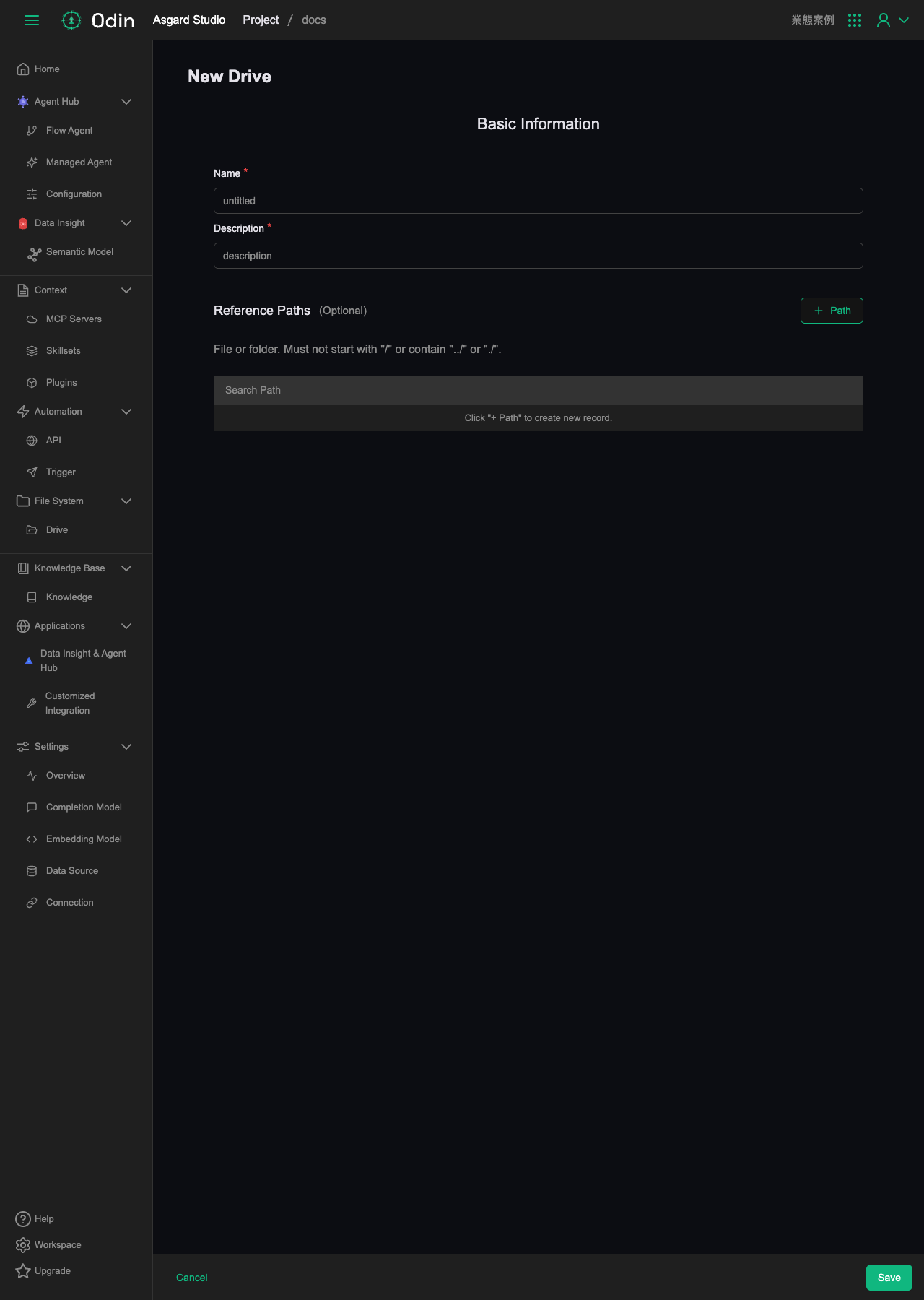
Drive detail page: four tabs
Opening a Drive shows four tabs, Files, Syncers, Context Index, and Settings. The default is read-only mode, and you click Edit to manage files, pull in folders, or create syncers. Next to it, Open in Advance Editor leads to a more capable editing view.
Syncers: sync content in from external sources on a schedule
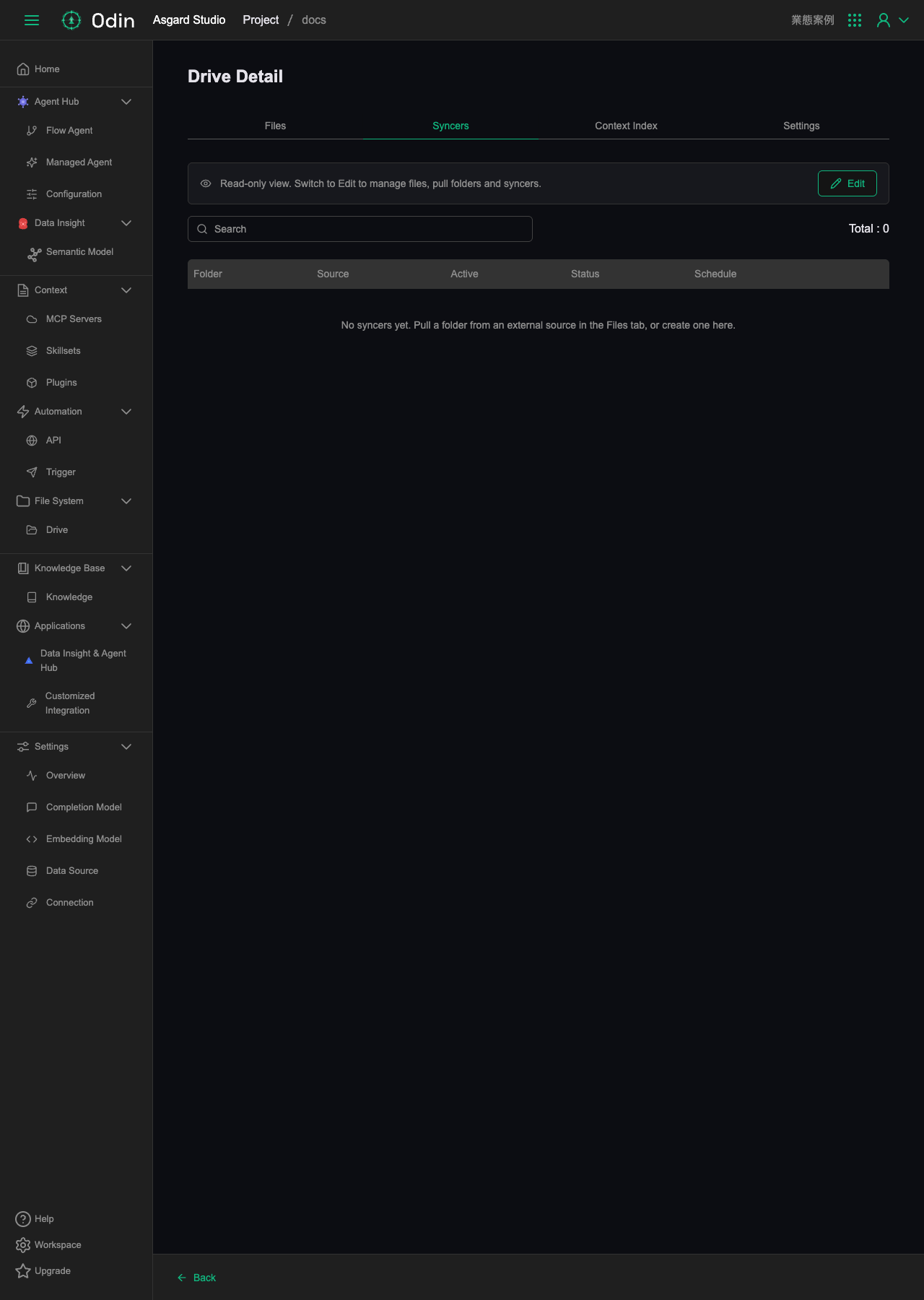
The Syncers tab is a table with columns for Folder, Source, Active, Status, and Schedule, used to manage the scheduled jobs that pull content into this Drive from external sources. Its empty state suggests either dragging a folder in on the Files tab, or creating one here.
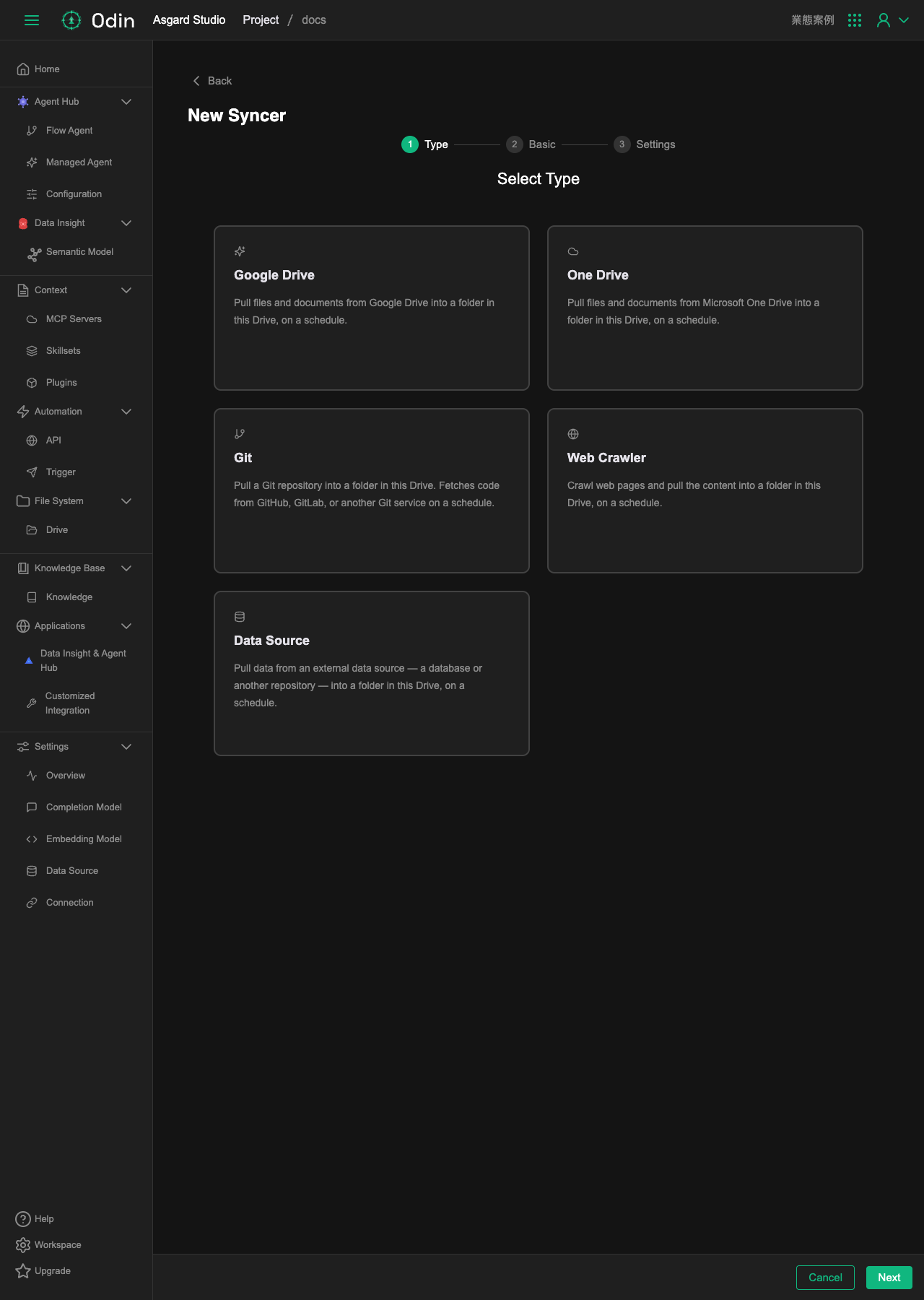
Switching to Edit mode adds a New Syncer button to the Syncers tab, which opens a three-step wizard: Type → Basic → Settings. The first step picks the source type, with five options, each described on screen:
- Google Drive — pull files and documents in from Google Drive on a schedule
- One Drive — pull files and documents in from Microsoft OneDrive on a schedule
- Git — pull a repository in from GitHub, GitLab or another Git service on a schedule
- Web Crawler — crawl web pages on a schedule and pull the content in
- Data Source — pull data in from an external database or another system on a schedule
Context Index: build a searchable index of a Drive's content
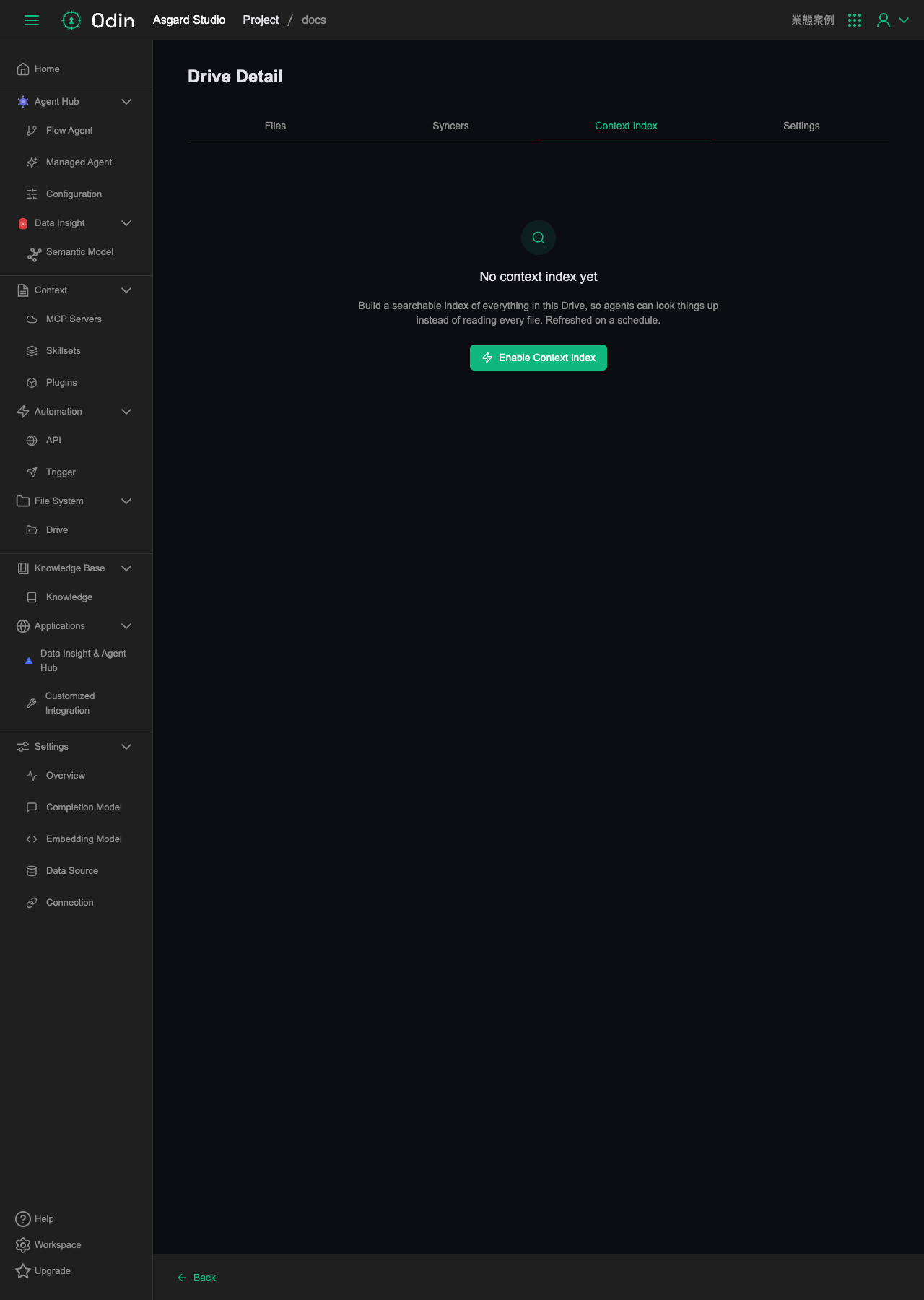
The Context Index tab starts in an empty state, explaining that it builds a searchable index across everything in this Drive so agents can look things up directly instead of reading whole files every time, and that the index refreshes on a schedule. An Enable Context Index button turns the feature on.
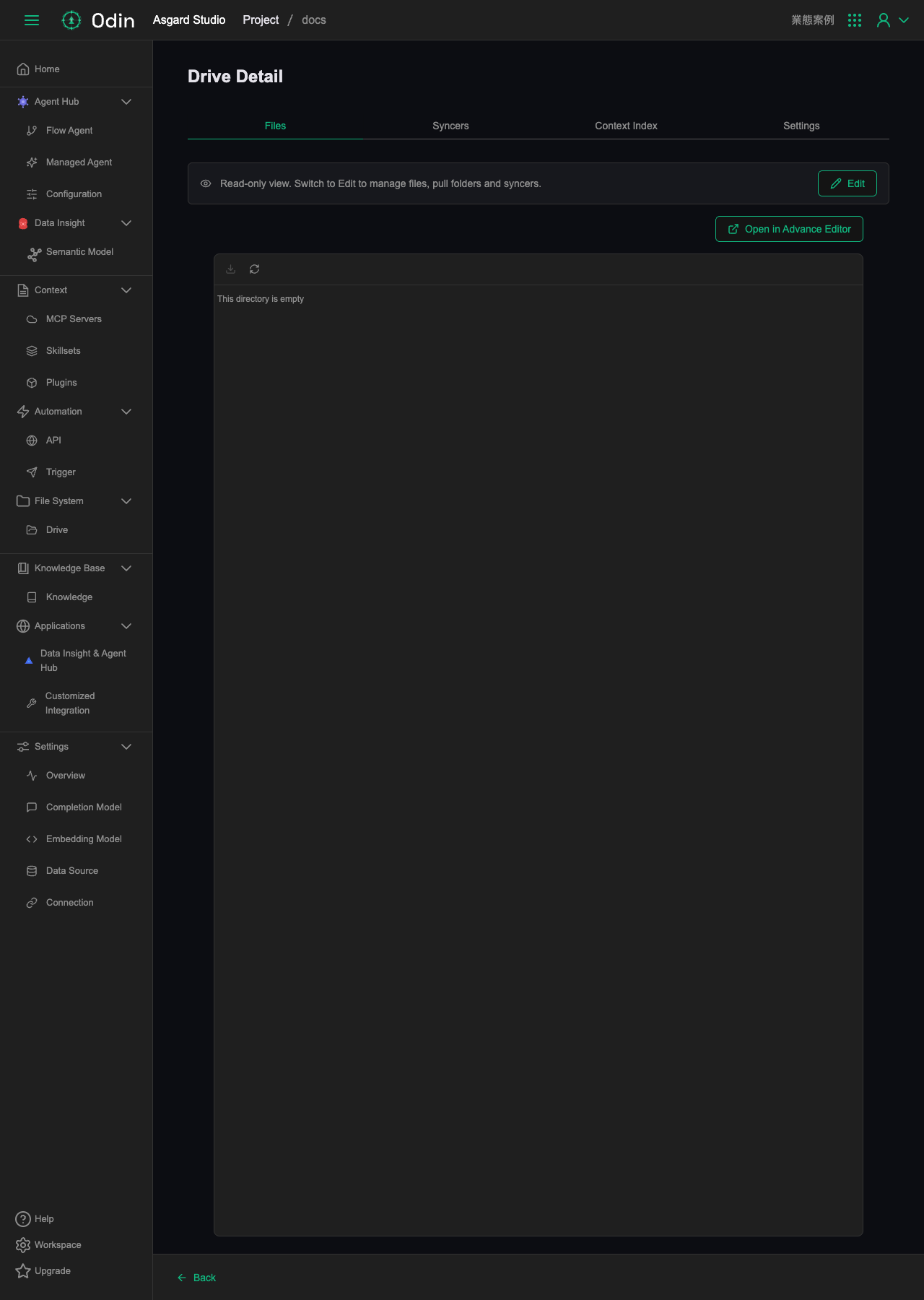
Settings: the same fields as creation
The Settings tab is the Basic Information form (Name, Description, Reference Paths), the same set of fields filled in when adding a Drive, here for editing afterwards.