Agent Hub home
Once you are inside a Project, the centre of the Sindri home screen is a chat input box (its default placeholder is What would you like to work on?), with the Agents currently published and available in this Project listed below it.
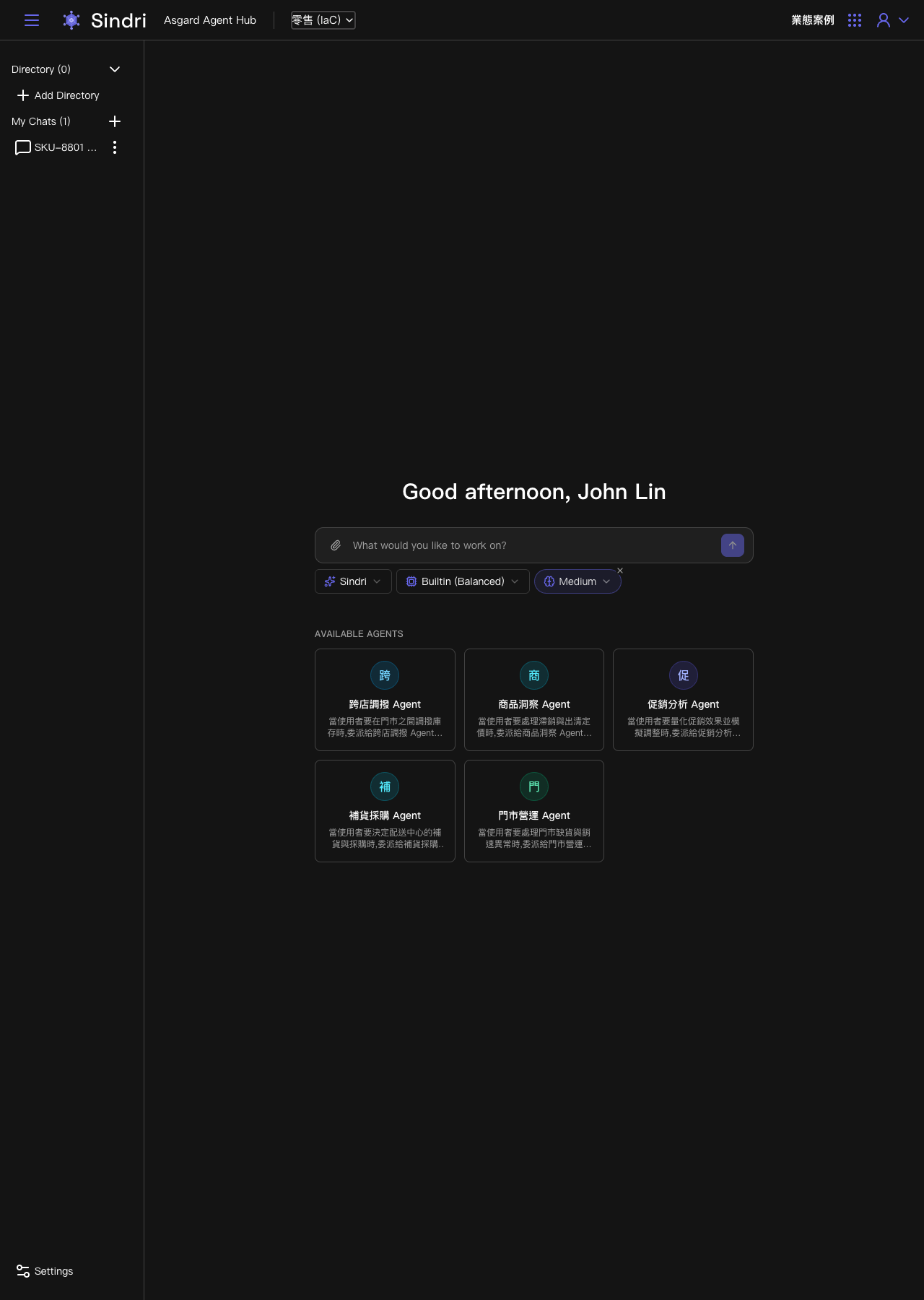
Available Agents
Each Agent card shows a name and a delegation description saying what kind of request should go to that Agent. In the retail chain example, one Project lists several Agents at once, covering inter-store transfer, product insight, promotion analysis, replenishment purchasing and store operations, each responsible for a different area of business judgement. All of them were created in advance by an administrator in Odin | Asgard Studio, configured with a prompt and mounted resources, and then published. Sindri itself offers no interface for creating or editing Agents.
Type the question and let Sindri decide who handles it
You do not have to pick the right Agent before asking. The selector above the input box shows Sindri by default rather than a specific Agent, which means this conversation is routed by Sindri's own logic: it reads each Available Agent's delegation description and passes the question to the most suitable one.
After you submit, the screen shows in order:
- Thought for a moment: Sindri working out how to handle the request.
- An automatically generated conversation title, summarised from the question.
- The Subagents panel: the name of the Agent currently delegated to and the step it is running, for example querying the available database semantic models. It expands to show how many Agents were delegated to and how far along they are.
- The final answer, usually a processed conclusion and a table rather than raw query output.
If an Agent judges that system data needs changing, for example creating a transfer order, it stops first to ask which option you want, then opens the governance gate's approval dialog. Nothing is executed until you allow or deny it. For what that approval flow actually looks like, see the store stockout to inter-store transfer case study.
Other options on the input box
Two more dropdowns sit below the input box: one for the model's reasoning cost and depth (the Builtin series, for example Balanced), and one for Reasoning effort (for example Medium). Files can be attached with the paperclip icon and submitted along with the question.