My Chat
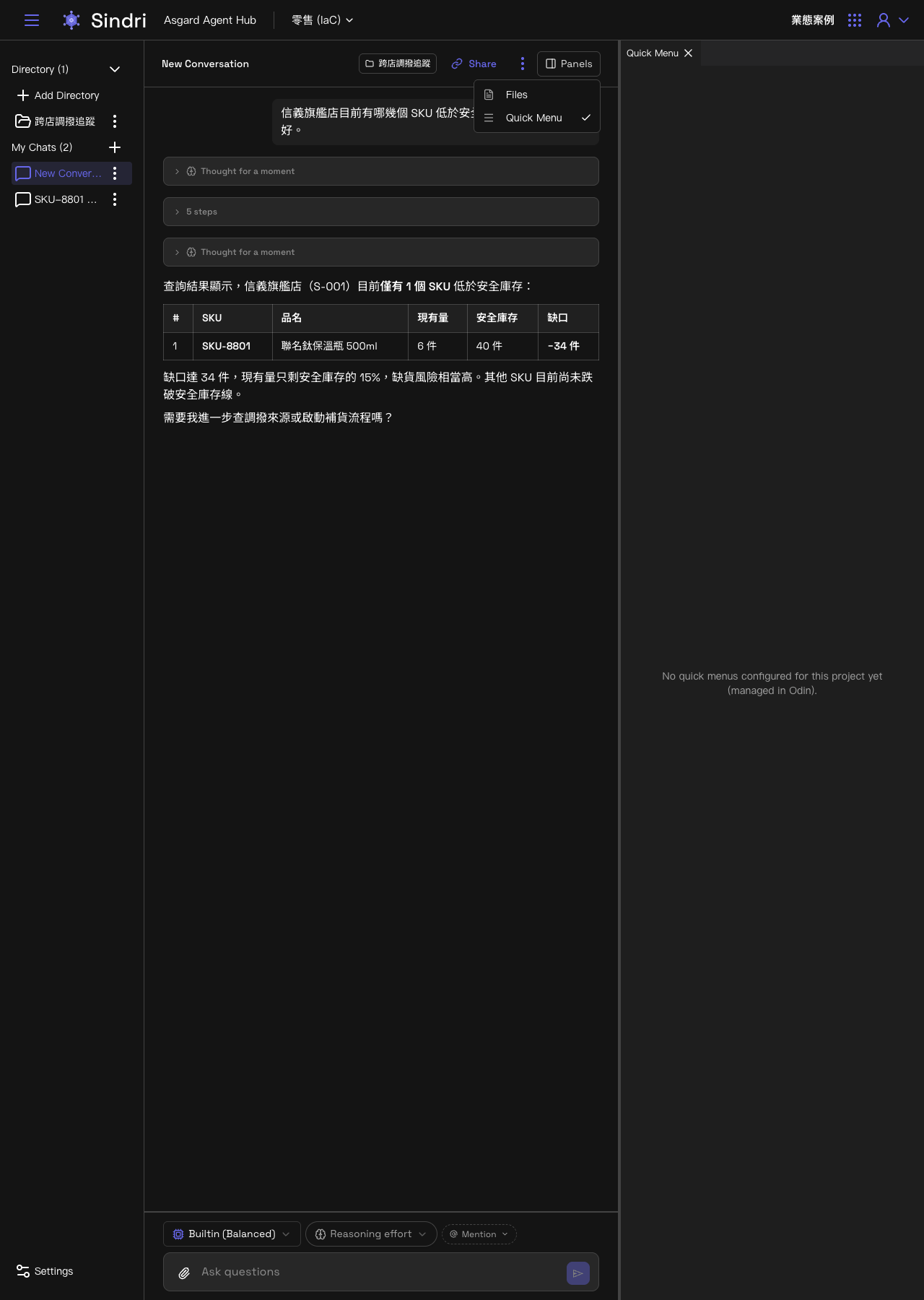
My Chats in the sidebar lists every conversation you have opened in the current Project. Each one stands alone, which differs from Directory, where a whole topic is kept together.
Creating a conversation
Clicking the plus button next to My Chats, or simply typing a question into the box on the home screen and submitting it, opens a new conversation. Which Agent handles it is decided by the same Available Agents delegation logic.
The conversation menu: rename, share, delete
Each conversation has a menu (⋮) on its right offering three actions:
- Share: opens the sharing dialog, where you can enter another user's email to add them to the People with access list, or click Copy Link to share a link.
- Rename: rename this conversation. The default title is summarised automatically from its content.
- Delete: delete this conversation.
Panels: the side panels beside a conversation
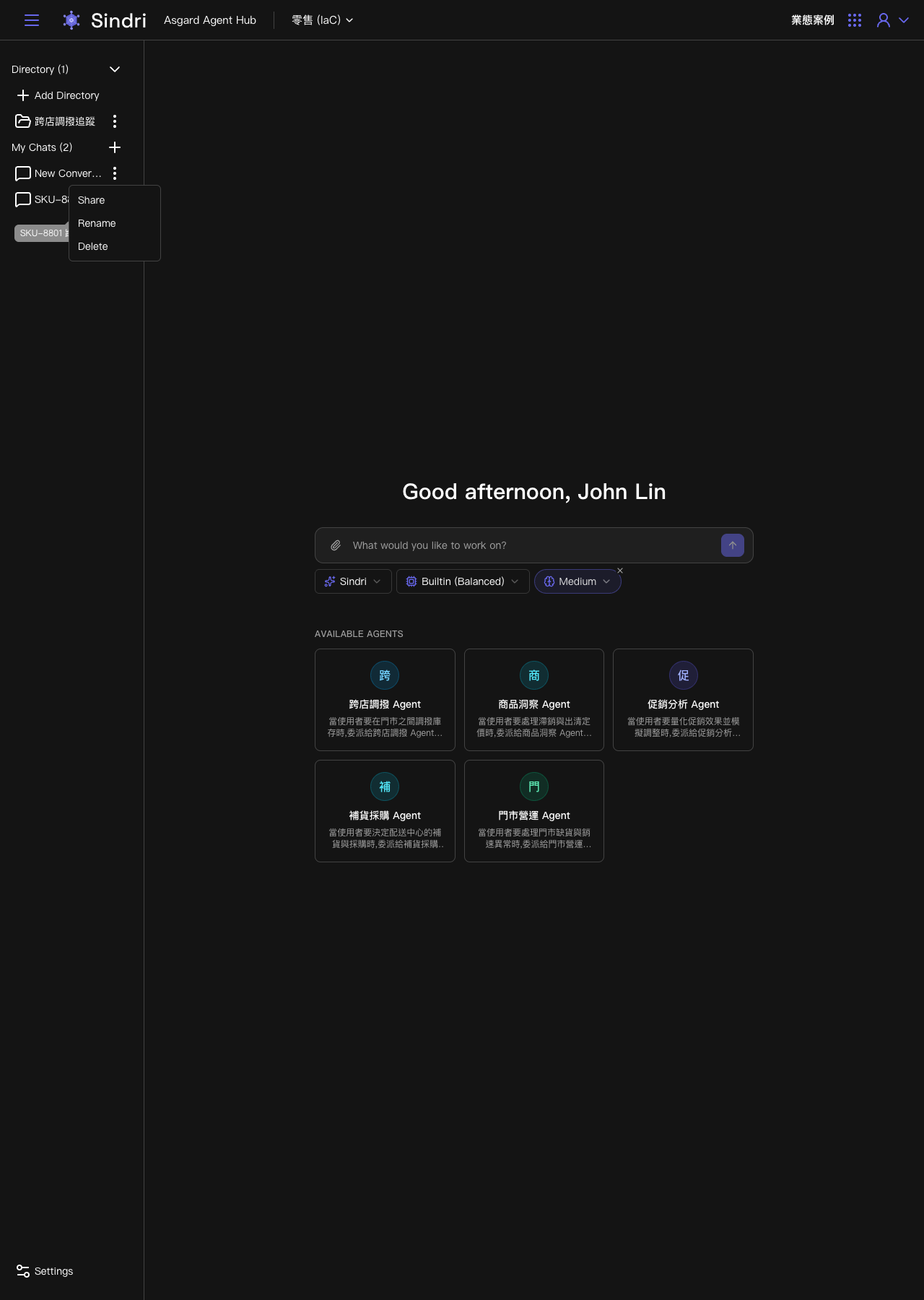
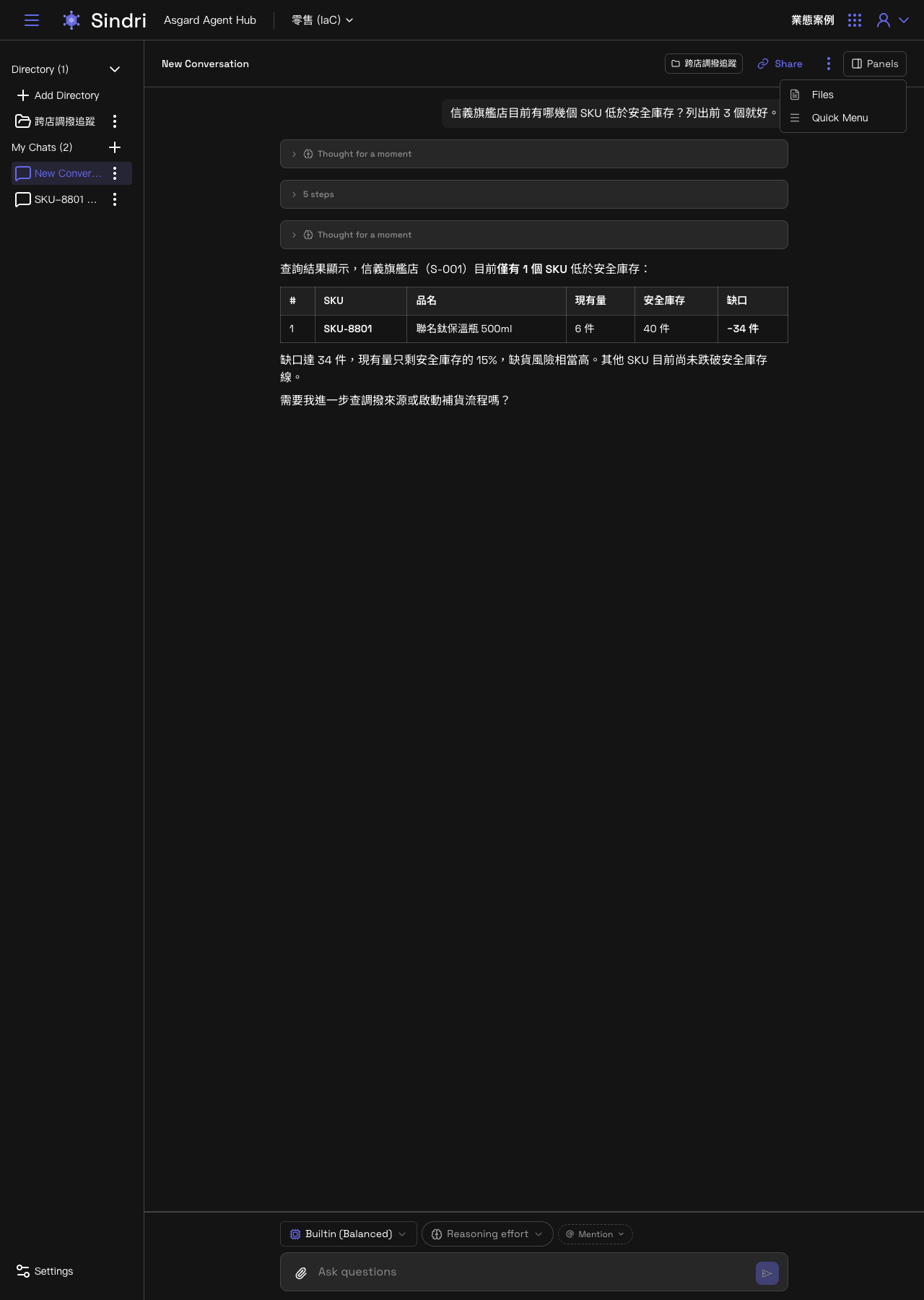
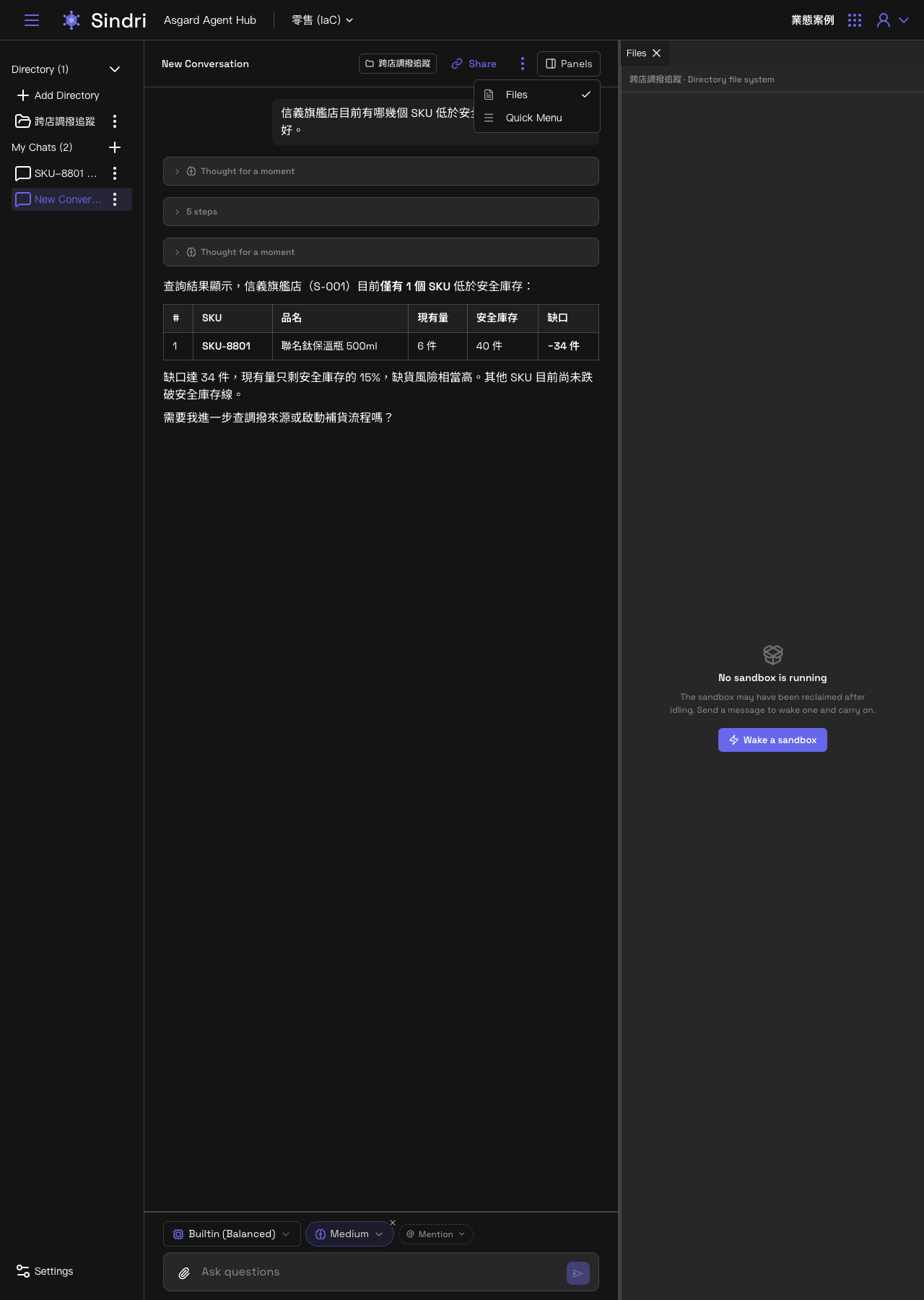
Panels, to the right of the conversation title bar, is a dropdown that toggles two side panels independently. Both can be open at once:
Files: the Sandbox file system behind this conversation
Every conversation has its own Sandbox, an execution environment where the Agent's actual querying, computation and file reads and writes happen. The Files panel is that Sandbox's file manager, where you can browse, upload, download, create, delete and rename files and folders.
The top of the panel labels whose file system you are looking at, which differs with where the conversation lives:
- A plain conversation under My Chats: labelled simply Sandbox.
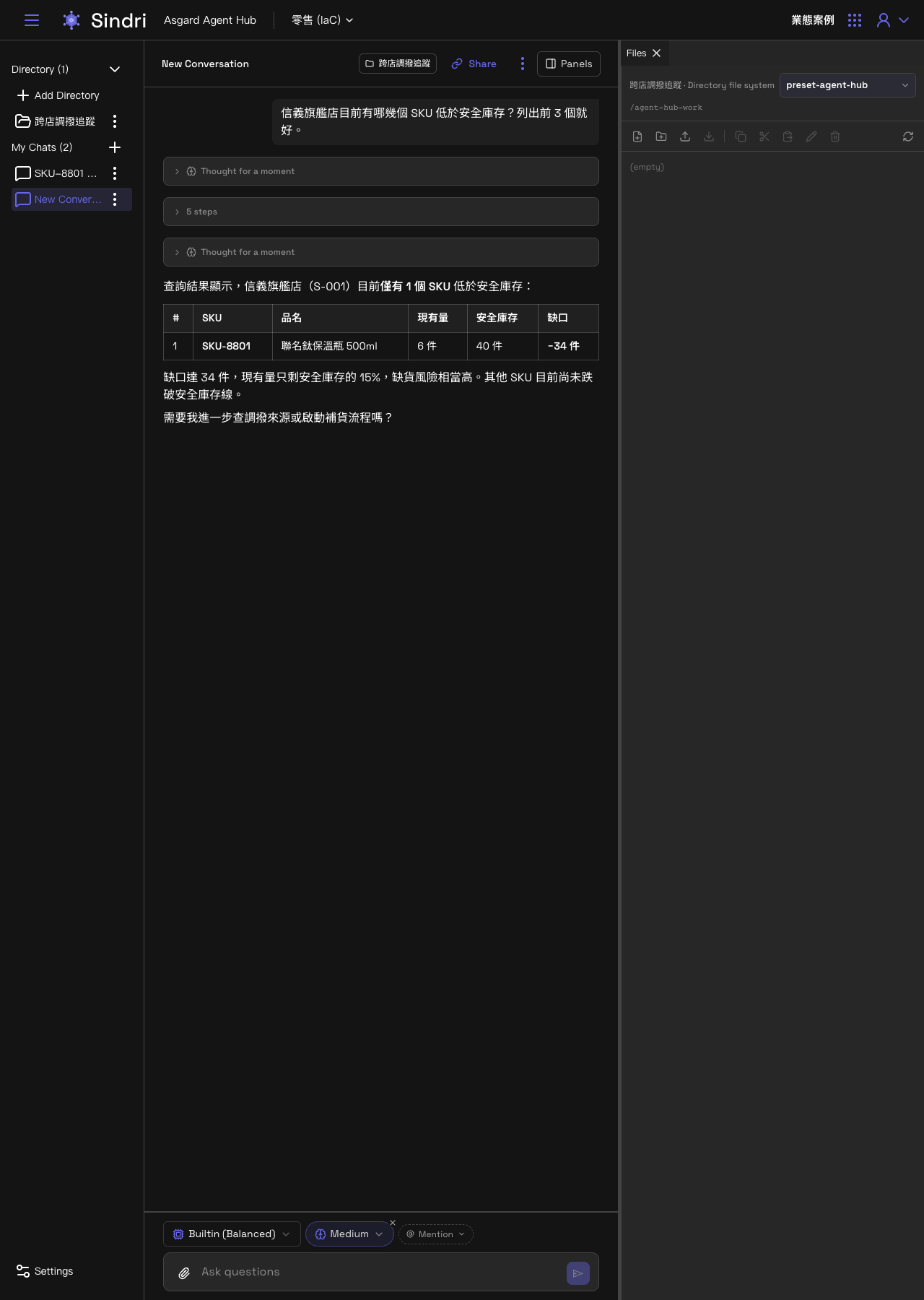
- A conversation under a Directory: labelled with that Directory's name plus Directory file system (for example 跨店調撥追蹤・Directory file system). This is still the same Sandbox. Its working directory is mounted into the Directory's shared file space, so the files here are the same ones as on the Directory page's Files tab.
A Sandbox is reclaimed after a period of inactivity, at which point the Files panel shows a No sandbox is running notice and offers a Wake a sandbox button. Clicking it, or simply sending the next message, wakes a Sandbox to continue the conversation. Files are not lost when a Sandbox is reclaimed.
Once woken, the panel shows the Sandbox name (for example preset-agent-hub) and the current path (for example /agent-hub-work), with the actual file list below. Immediately after waking, with no files yet, it shows as empty.
Quick Menu: the shortcut menu an Agent has configured
The Quick Menu panel lists every Agent in the current Project that has a shortcut menu configured, as an expandable tree: Agent (avatar plus name), then category (which can nest), then the individual questions. Clicking a question puts its text into the input box. If that item is configured to send automatically, clicking it submits straight away without a second press.
This menu's contents are configured in Odin | Asgard Studio, under each Agent's On-boarding Settings. Sindri only displays it and cannot edit it. If nobody has configured a shortcut menu on the Odin side for any Agent in the current Project, the panel stays blank. That means nobody has configured one, not that the feature is broken or missing.